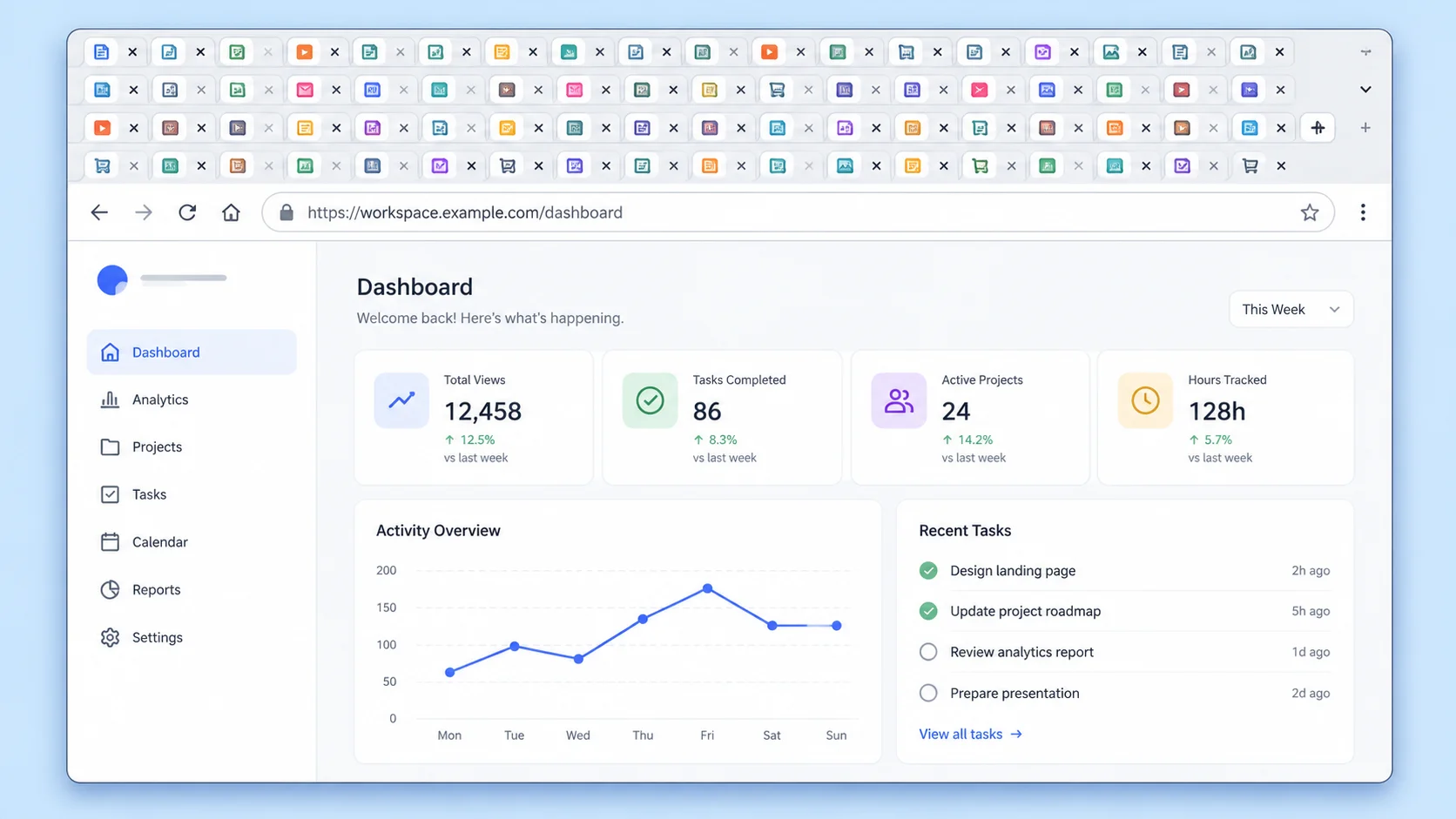
When you are working, browser tabs can multiply endlessly. You open a new tab for a reference, another while reading related news, and before you know it, you have 30 or 40 tabs open.
I used to keep tabs open because I was afraid I would lose an important page. Since I started using Urlala, a smart bookmarking service, I save only the links I need and close my browser tabs at the end of the workday.
Problems Caused by Keeping Too Many Tabs Open
Having too many tabs open does more than make your browser look cluttered.
It Is Hard to Find the Page You Need Again
As the number of open tabs grows, page titles and icons become smaller. You know you saw the material just a moment ago, but you end up clicking through tabs one by one to find it. Searching for links wastes time and repeatedly interrupts your workflow.
You Cannot Close Your Browser
When you leave tabs open because you might need them someday, closing your browser becomes difficult. You may also worry about whether your previous tabs will be restored properly after restarting your computer.
Resources from Different Tasks Get Mixed Together
Work documents, reference links, news articles, and personal reading all end up in the same window. Looking at the tabs alone, it becomes difficult to tell which pages belong to which task.
Your Read-Later Tabs Keep Piling Up
Pages you open to read later are gradually pushed farther back as new links appear. Eventually, you have a growing collection of tabs that you neither read nor feel comfortable closing.
Why Existing Link-Organization Methods Felt Inconvenient
I tried using browser bookmarks and messaging apps to solve the tab problem, but each option had drawbacks.
Browser Bookmark Folders Take Too Much Effort to Manage
Bookmarks work well when you only have a few. As the number of links grows, however, the folder structure becomes complicated. If you postpone organizing them because you are unsure where each link belongs, your bookmarks quickly become cluttered too.
Desktop and Mobile Work Differently
Checking a link saved on your computer from your phone—or using a page you found on mobile for desktop work—can require several steps. When links are managed separately on each device, you may even end up searching for the same resource again.
Links Get Buried in Messages to Yourself
Sending a link to yourself in a messaging app is quick, but each link gets buried as new messages arrive. It becomes difficult to remember why you saved it, and messaging apps make it hard to organize multiple links systematically.
How I Organized My Browser Tabs with Urlala
The first thing I did with Urlala was save the URLs from my open tabs. Instead of keeping every tab open, I selected only the links worth revisiting and moved them into my bookmarks.
I organized the saved links into simple folders based on their purpose:
- Work
- Reference materials
- News
- Read later
Keeping the folder names simple reduced the time I spent deciding where to save a new link. Grouping related links in one folder also made it easier to find the resources I needed later.
I managed links found during desktop work and content discovered on my phone in the same place. I could save a link on mobile while on the go and open it later on my computer, which reduced duplicate searches.
When I needed to send several resources to someone, I grouped the related links into a folder and shared them together. This was more organized than copying and sending each URL separately, and it made the relationship between the resources clearer to the recipient.
Whenever I needed a saved link, I searched for it or reopened it from the relevant folder. I no longer had to keep tabs open just because I might need them later.
Before and After Using Urlala
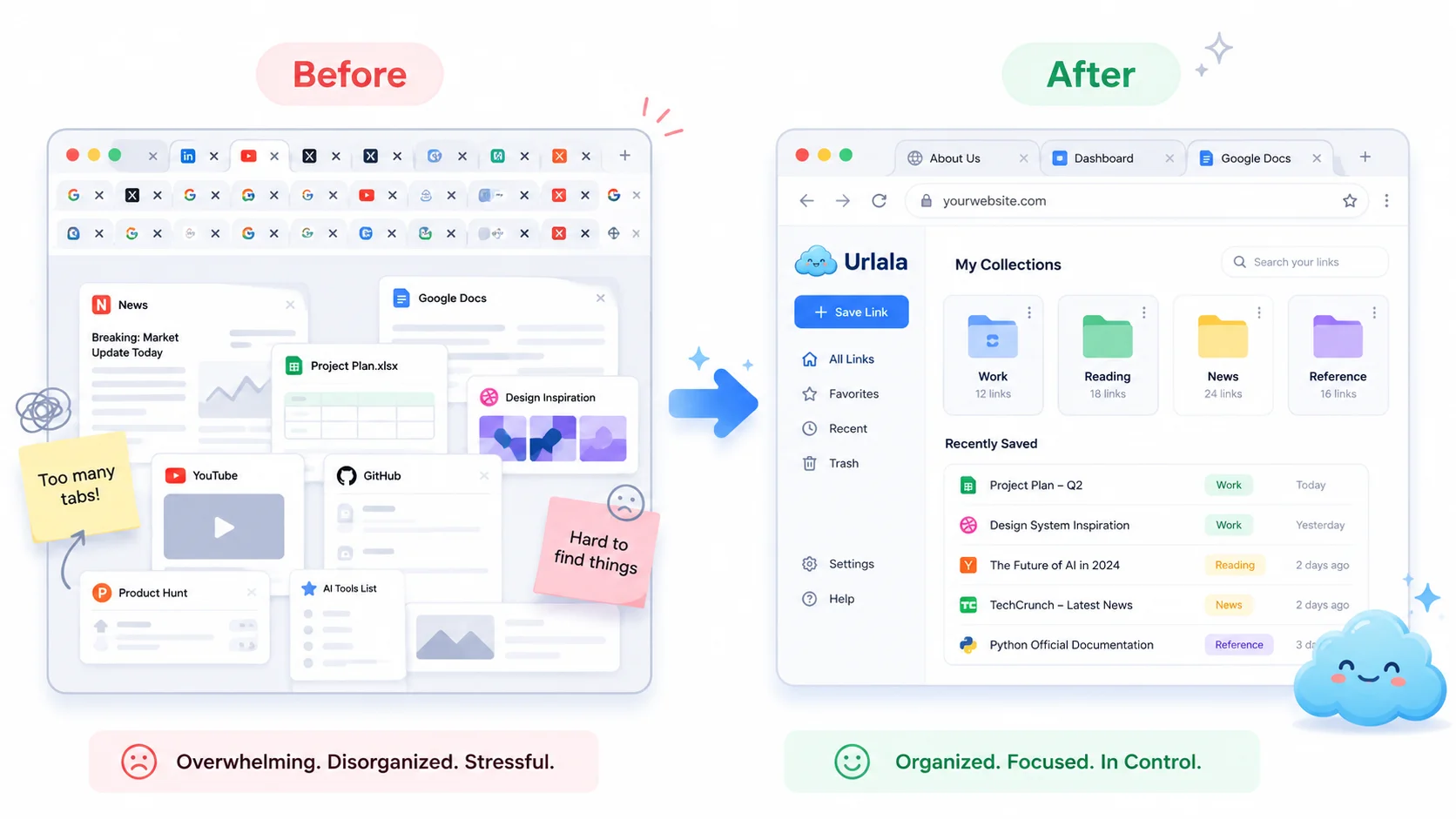
Before Urlala, I kept 30 to 40 browser tabs open even after I finished working. Important resources and read-later content were mixed together, and I was reluctant to close tabs because I might lose an important page.
After Urlala, I save only the links I want to revisit in folders and close the tabs. Work resources stay organized by folder, and I search for or reopen them only when I need them.
With fewer tabs open, my browser looks cleaner and it is easier to focus on the task at hand. I also spend less time clicking through tabs to find links, which has improved my productivity and work efficiency.
Who Should Use Urlala?

Urlala is especially useful for people who:
- Keep many browser tabs open while working
- Have complicated, cluttered bookmark folders
- Want to manage the same links on both desktop and mobile
- Want to organize reference materials by task
- Frequently share multiple links at once
- Want to save read-later content without forgetting it
Stop Using Browser Tabs as Storage
Browser tabs are meant for pages you are currently viewing, not for storing links long term. The more tabs you keep open, the harder it becomes to find what you need and stay focused.
After I started using Urlala, I developed a habit of saving useful links as bookmarks and organizing them into folders by task and purpose. Managing links across desktop and mobile—and sharing related resources as a group—has also been convenient.
If you keep dozens of tabs open every day because you cannot bring yourself to close them, try saving only the links you need in Urlala. It is a simple way to organize cluttered browser bookmarks and improve your productivity and work efficiency.