Install Urlala in Chrome on mobile
InstallChrome 2 min
Install Urlala on your Home Screen from Chrome on mobile to launch it quickly like a regular app.
1. Open Install and create shortcut
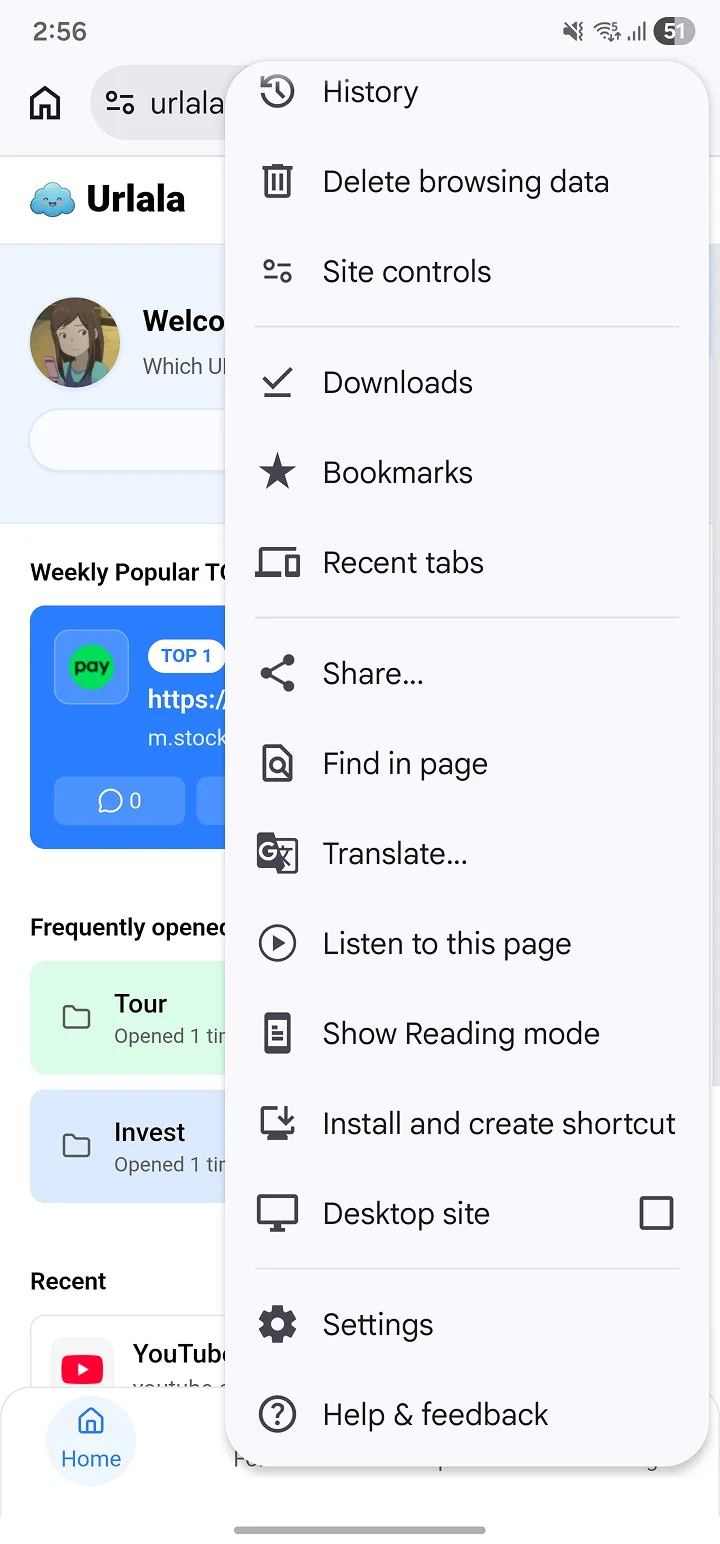
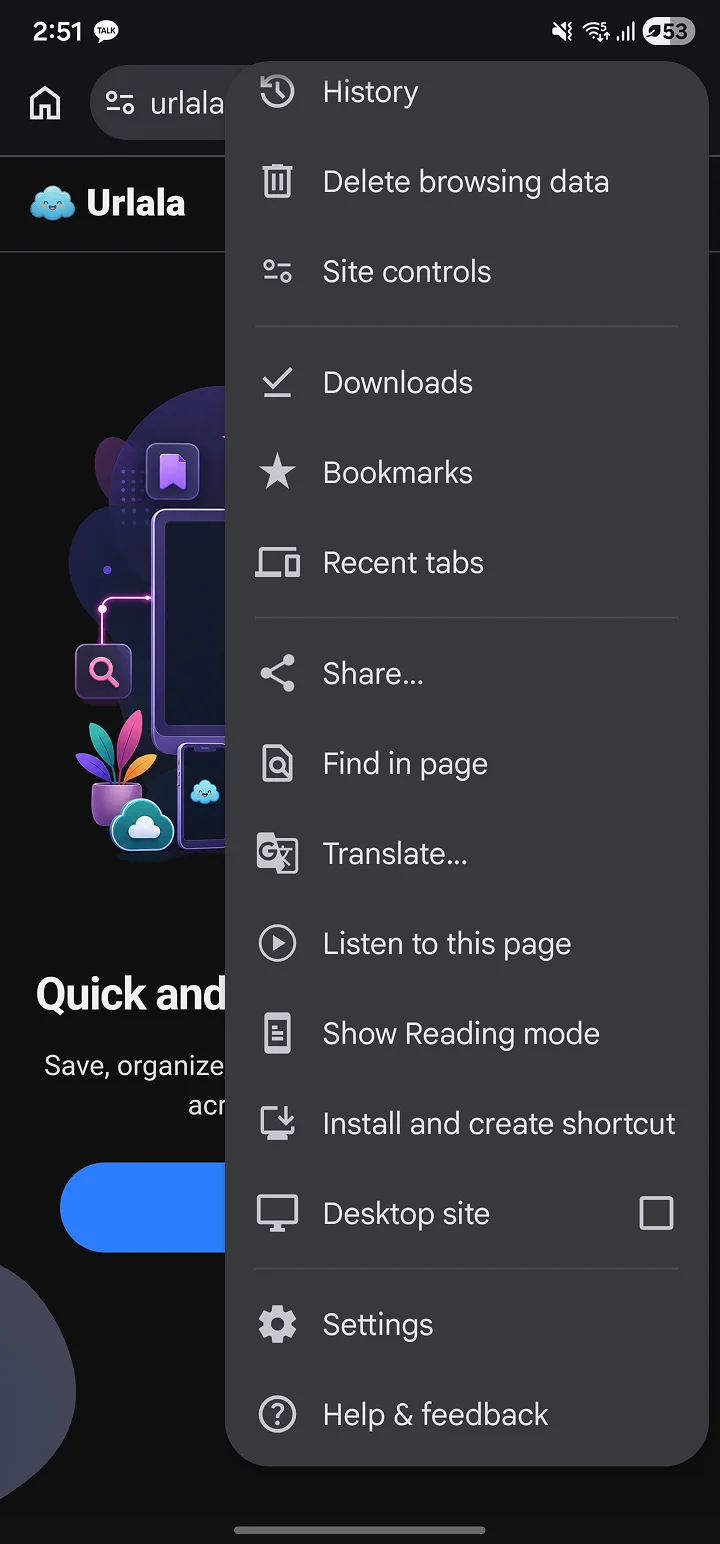
Open Urlala in Chrome and tap the More button at the top of the browser. Select Install and create shortcut from the menu.
2. Select Install
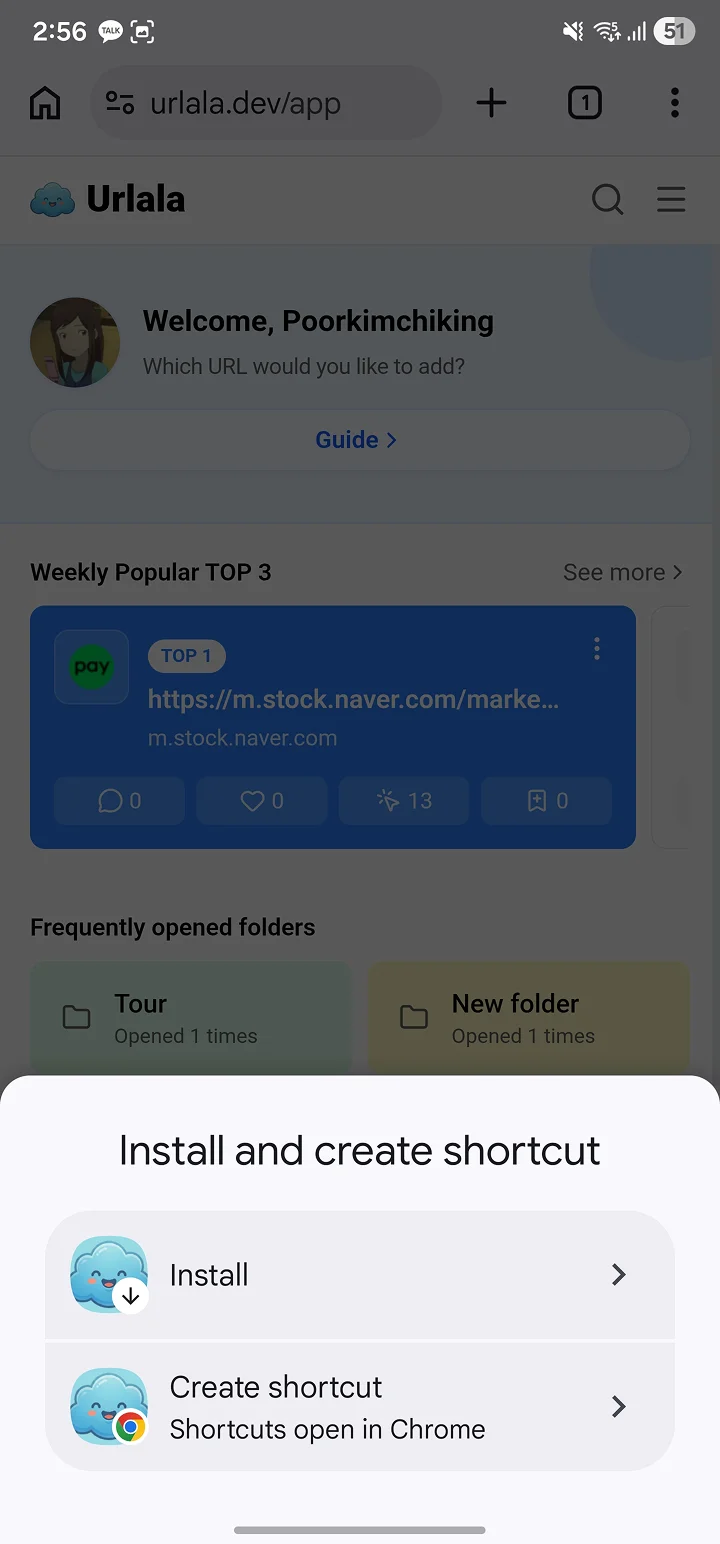
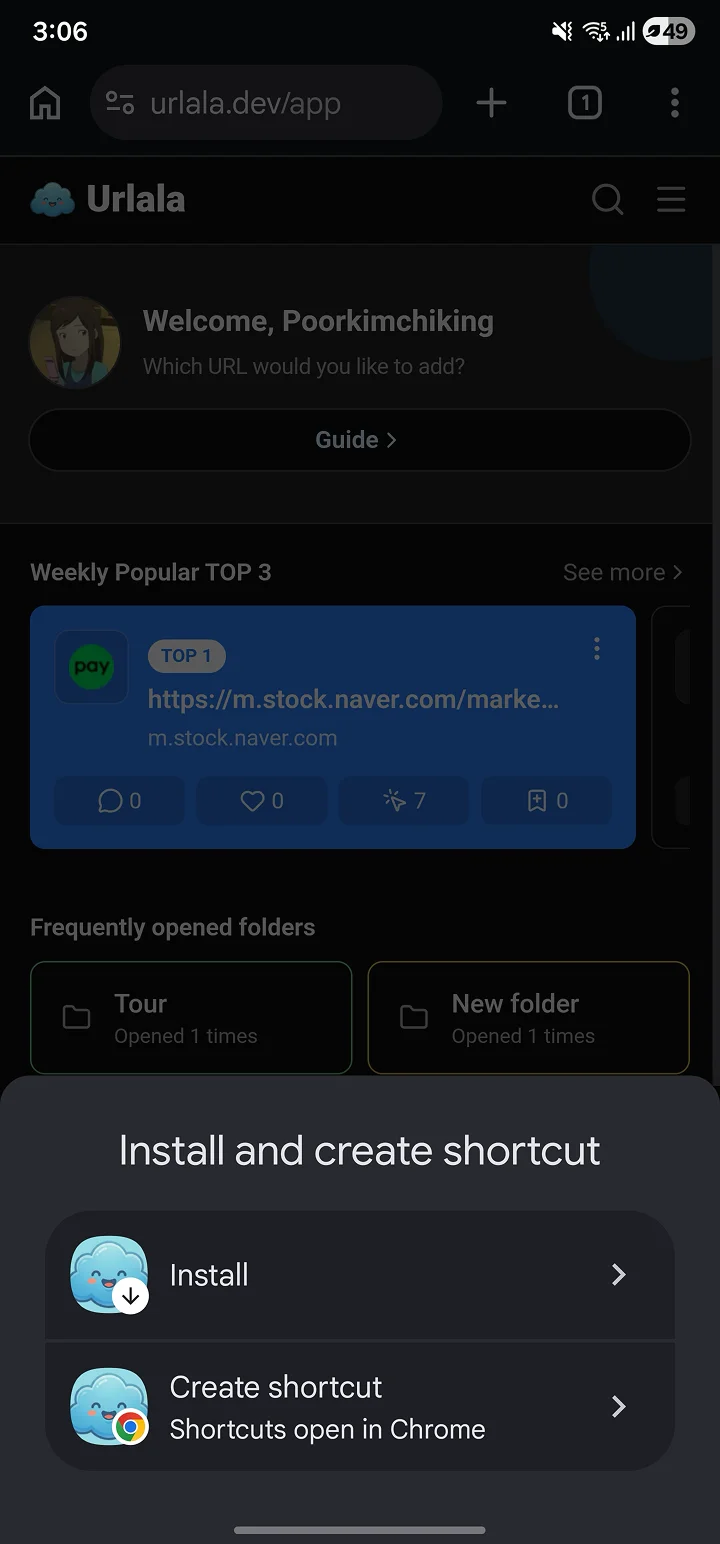
Tap Install in the menu that appears.
3. Confirm installation in the pop-up
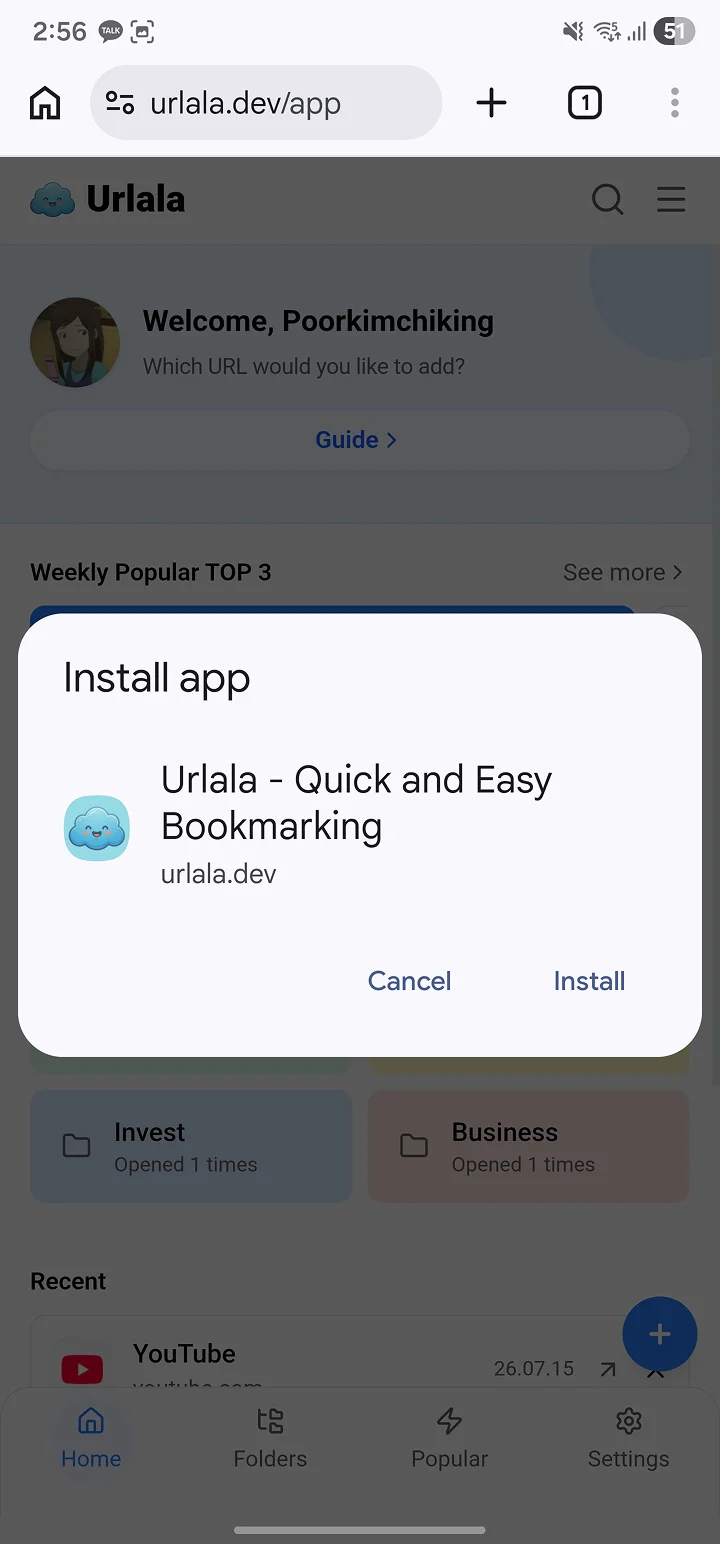
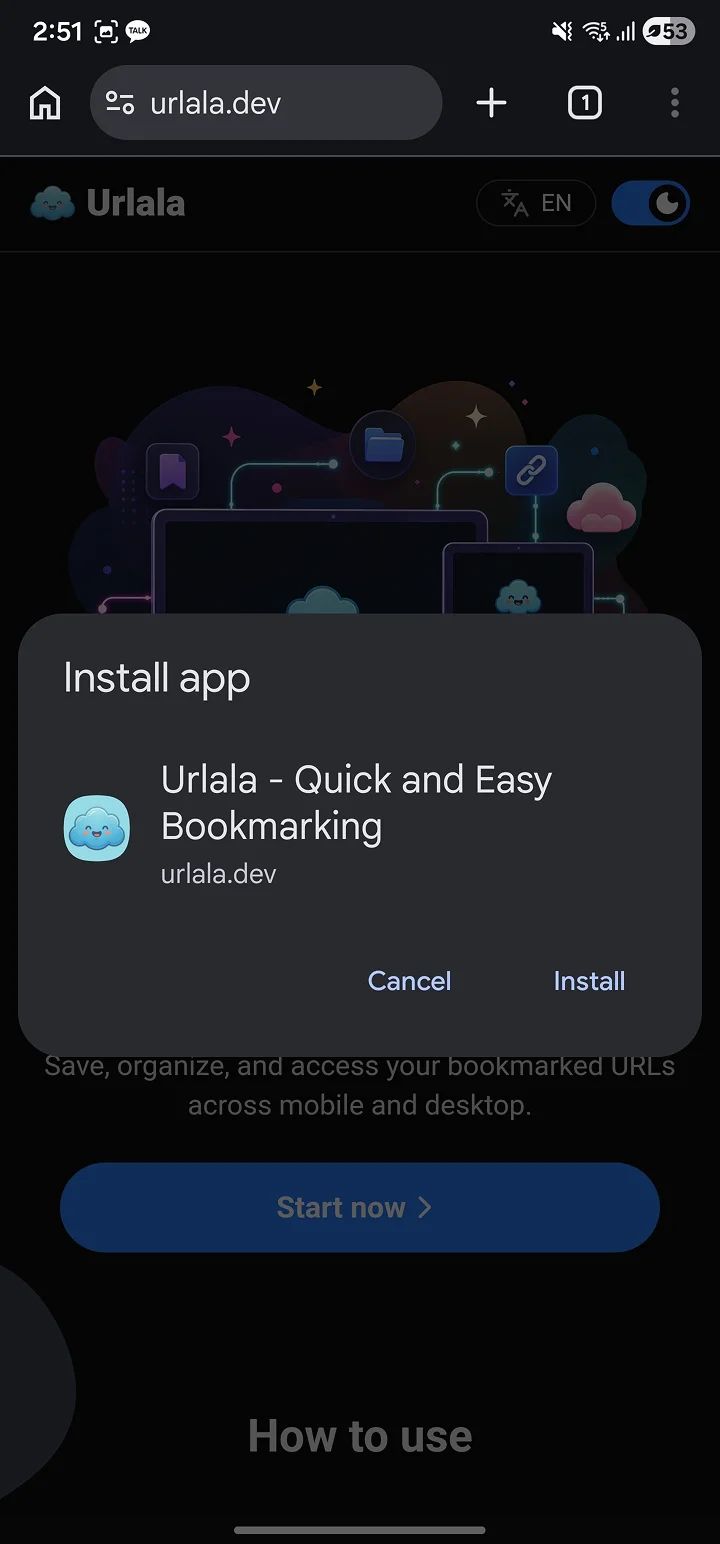
When the confirmation pop-up appears, select Install. Chrome adds Urlala to your device.
4. Find the Urlala icon
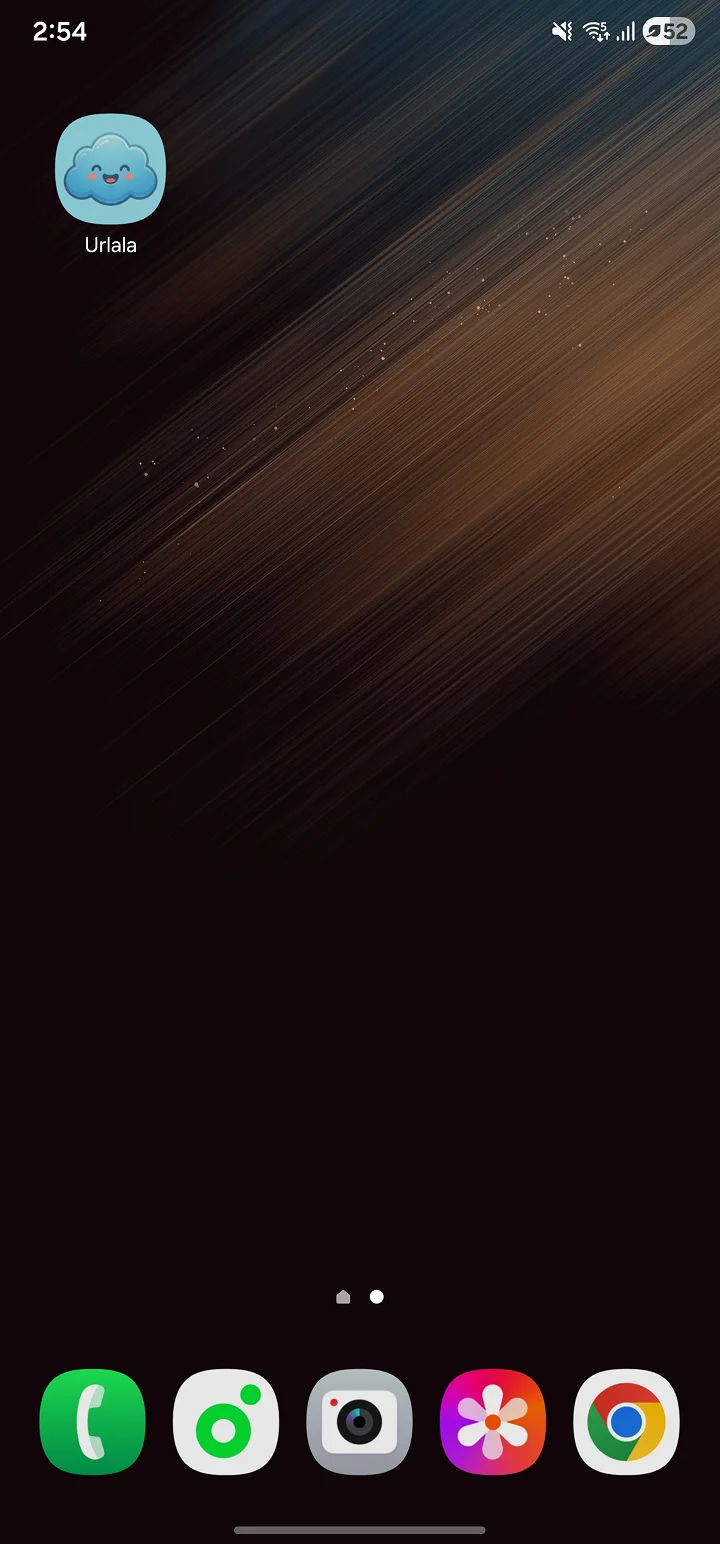
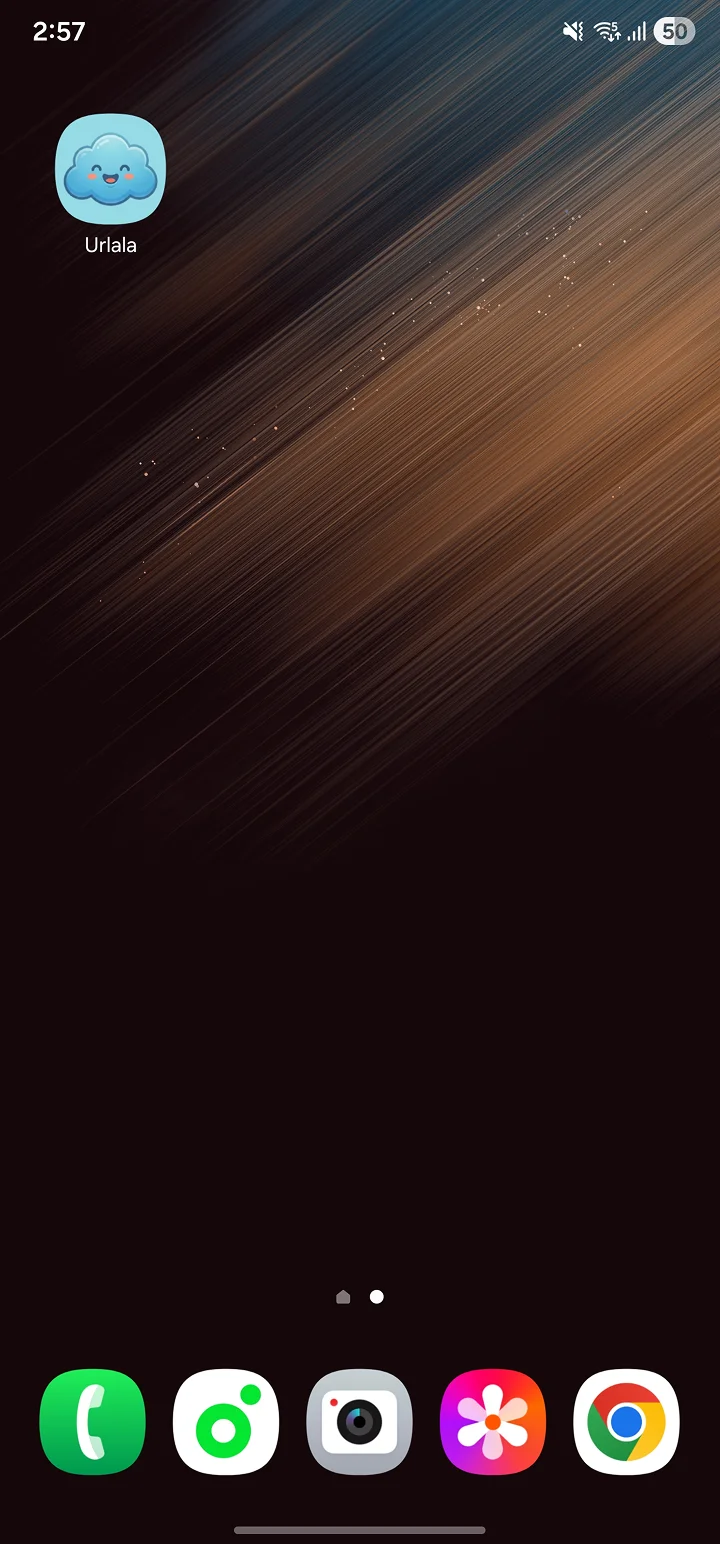
Once installation is complete, you can find the Urlala icon in your app list or on your Home Screen. Tap the icon to launch Urlala.
5. Open the installed Urlala app
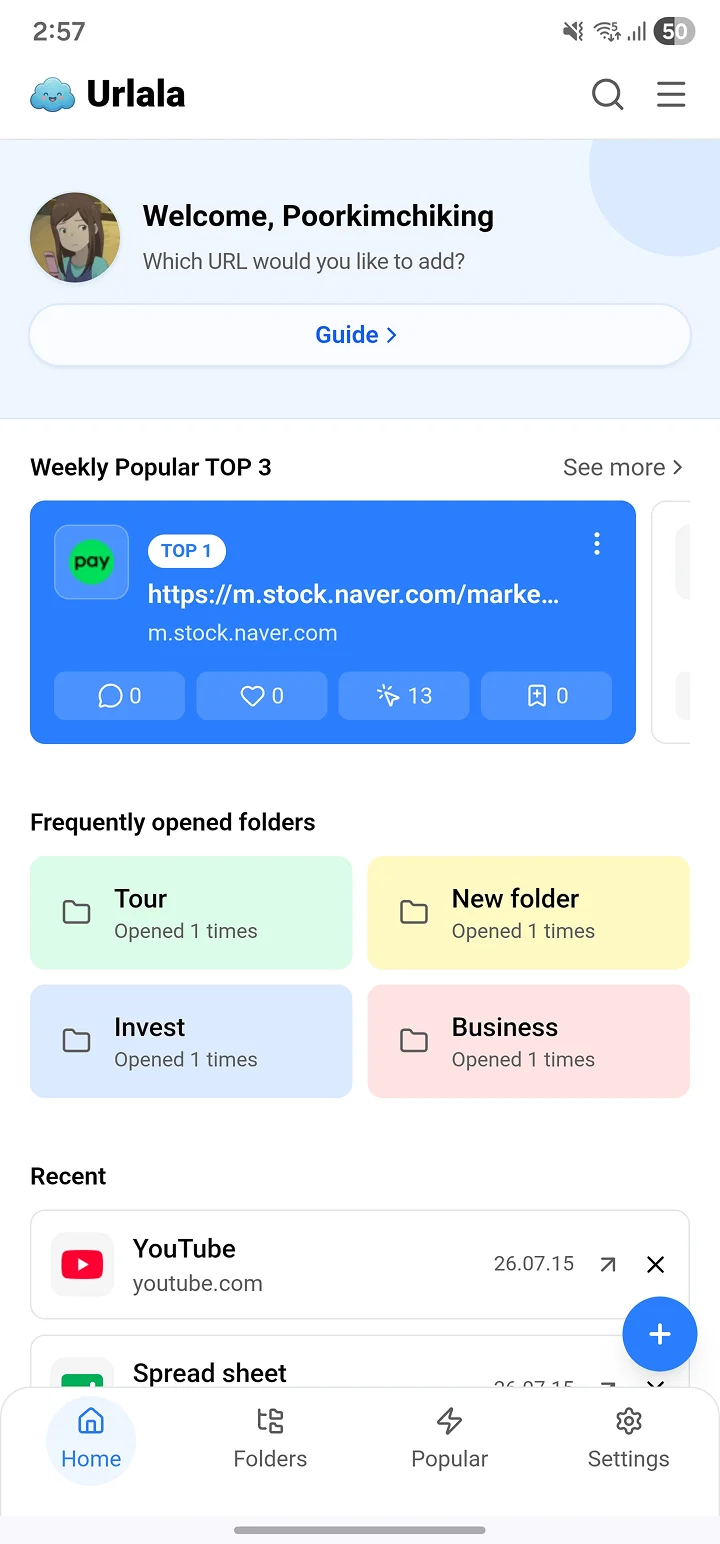
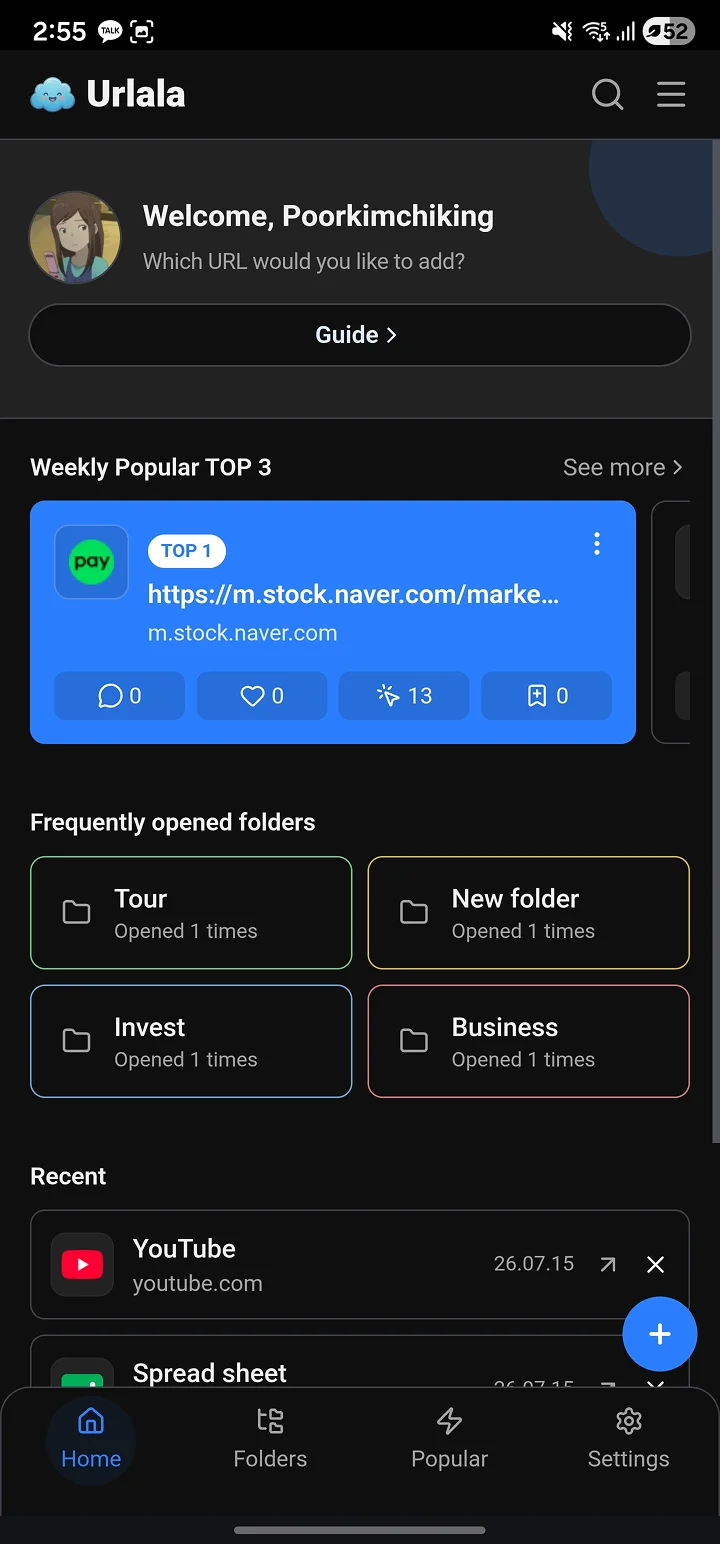
The installed version of Urlala opens in its own app window instead of a browser tab. You can now launch Urlala directly from your Home Screen.