Browser extension guide
Install the Urlala extension to save the web page you are currently viewing directly from your browser. You can choose a title, URL, memo, and folder when saving it.
Install the extension
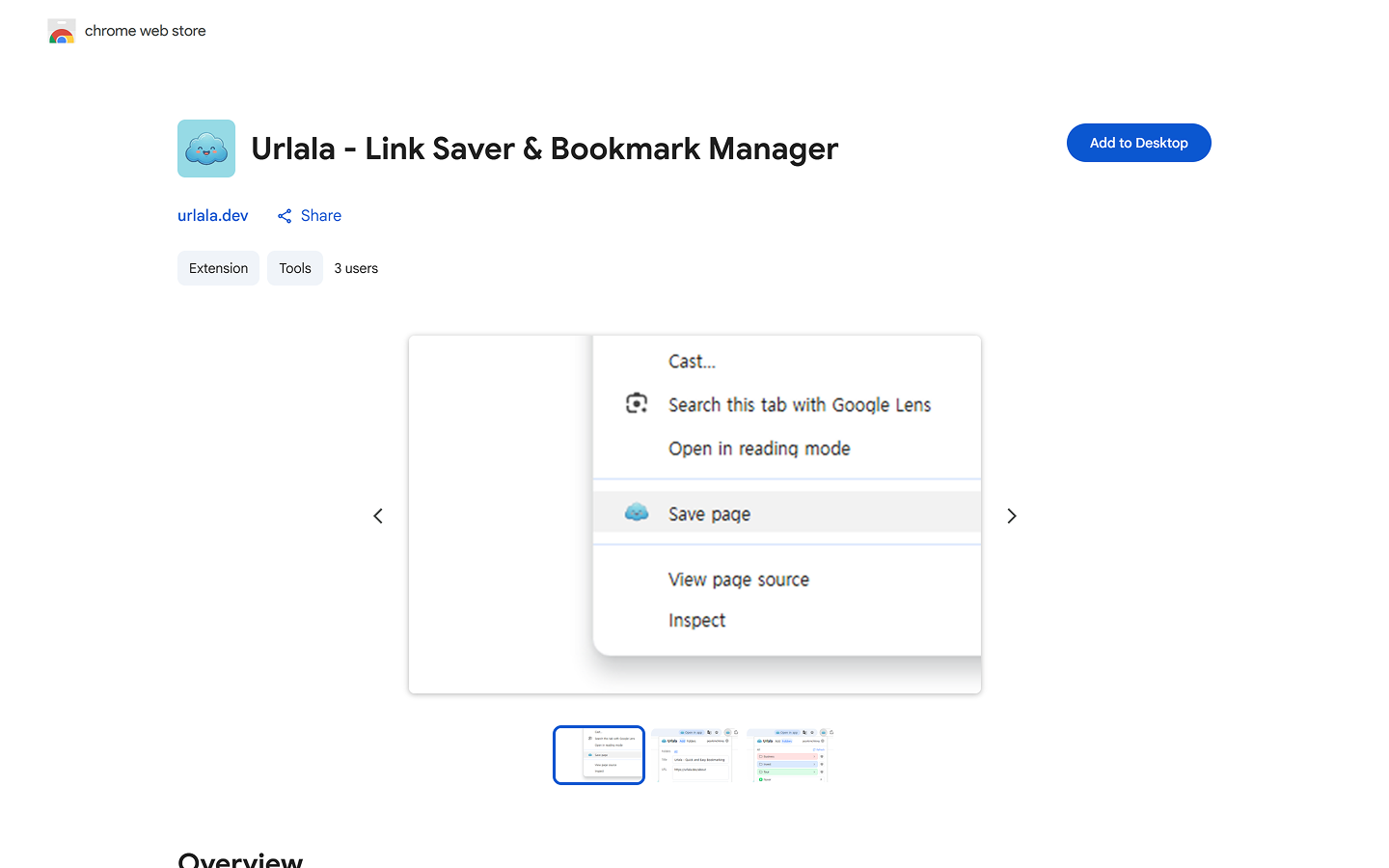
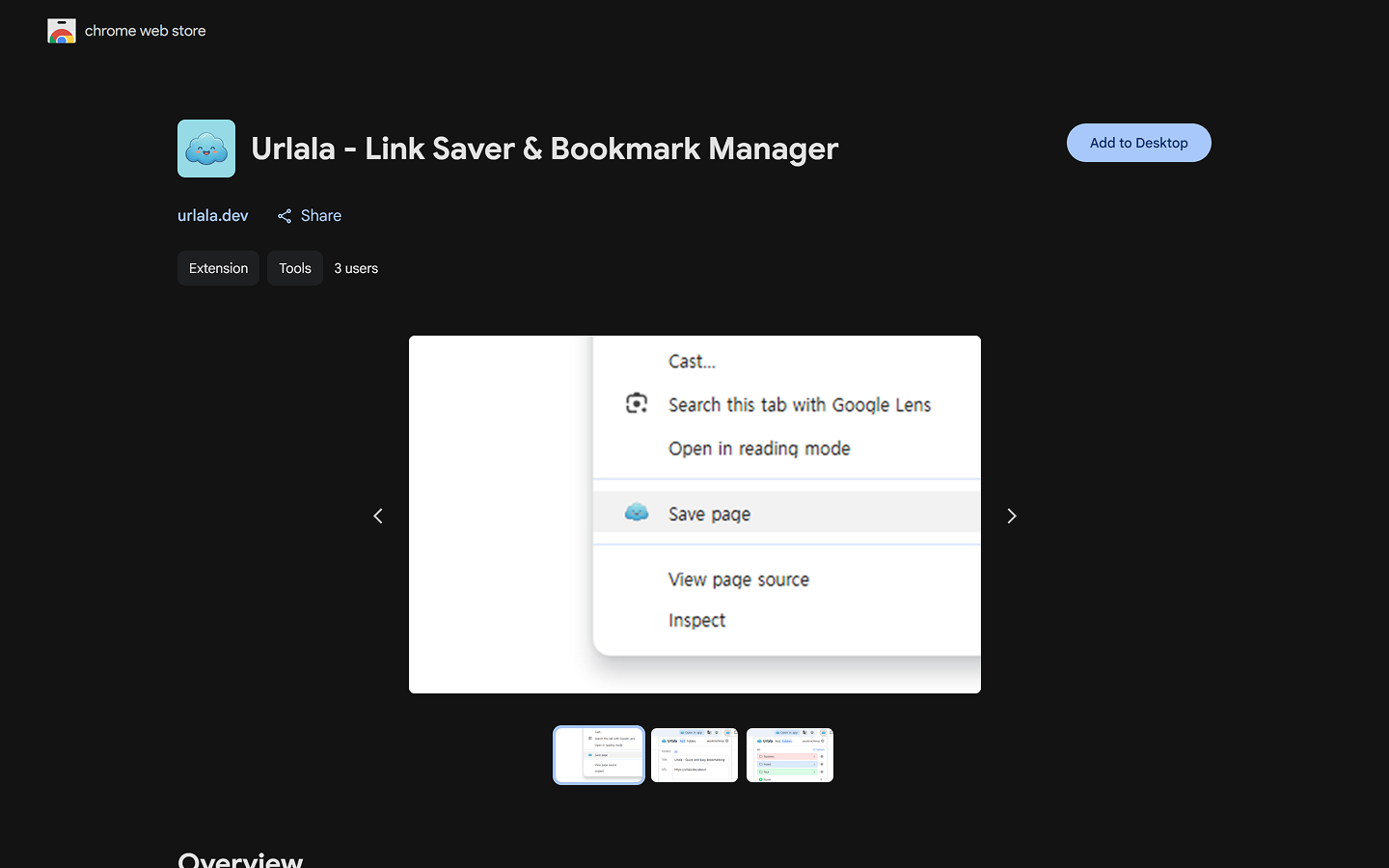
- Open the Urlala extension in the Chrome Web Store.
- Select Add to Chrome.
- When the permissions dialog appears, select Add extension.
- Select the puzzle-shaped Extensions icon in the browser toolbar, then select the pin icon next to Urlala to pin it to the toolbar.
Once installed, you can open Urlala directly from the browser toolbar.
Save the current page
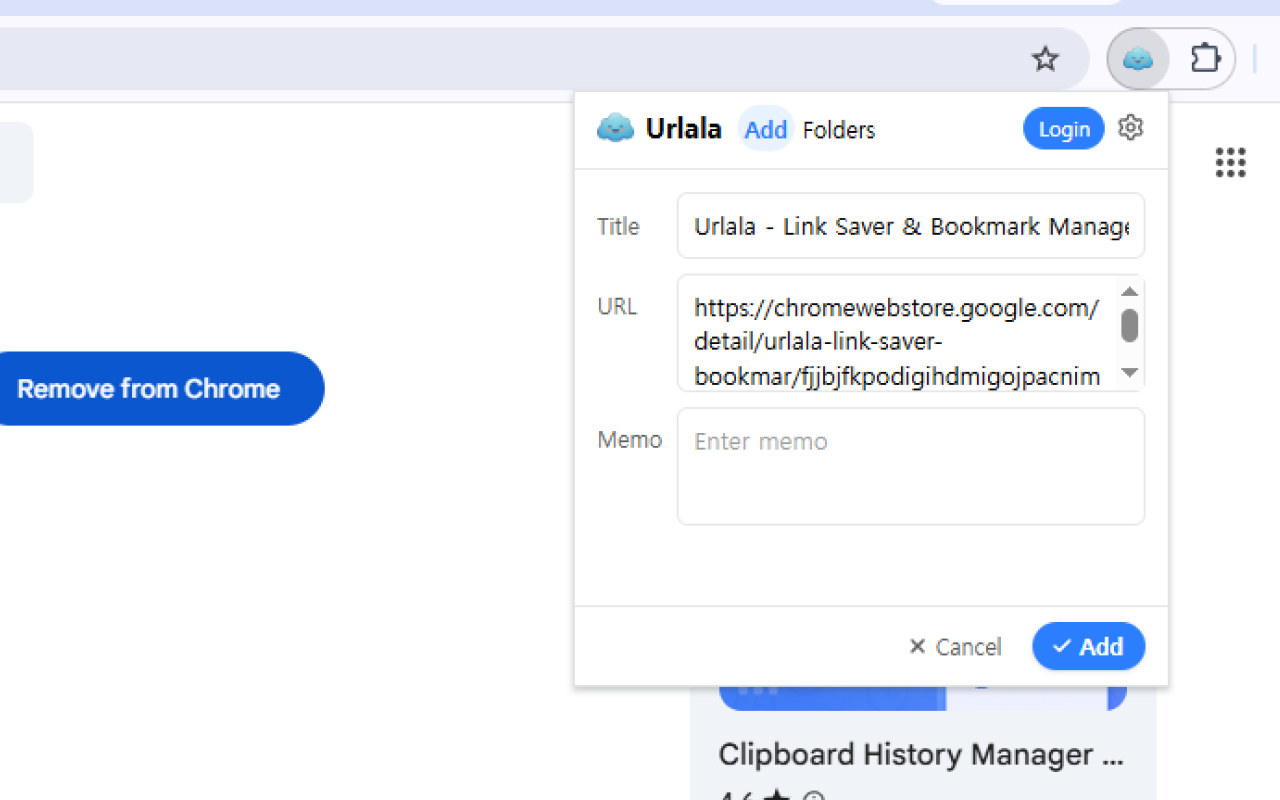
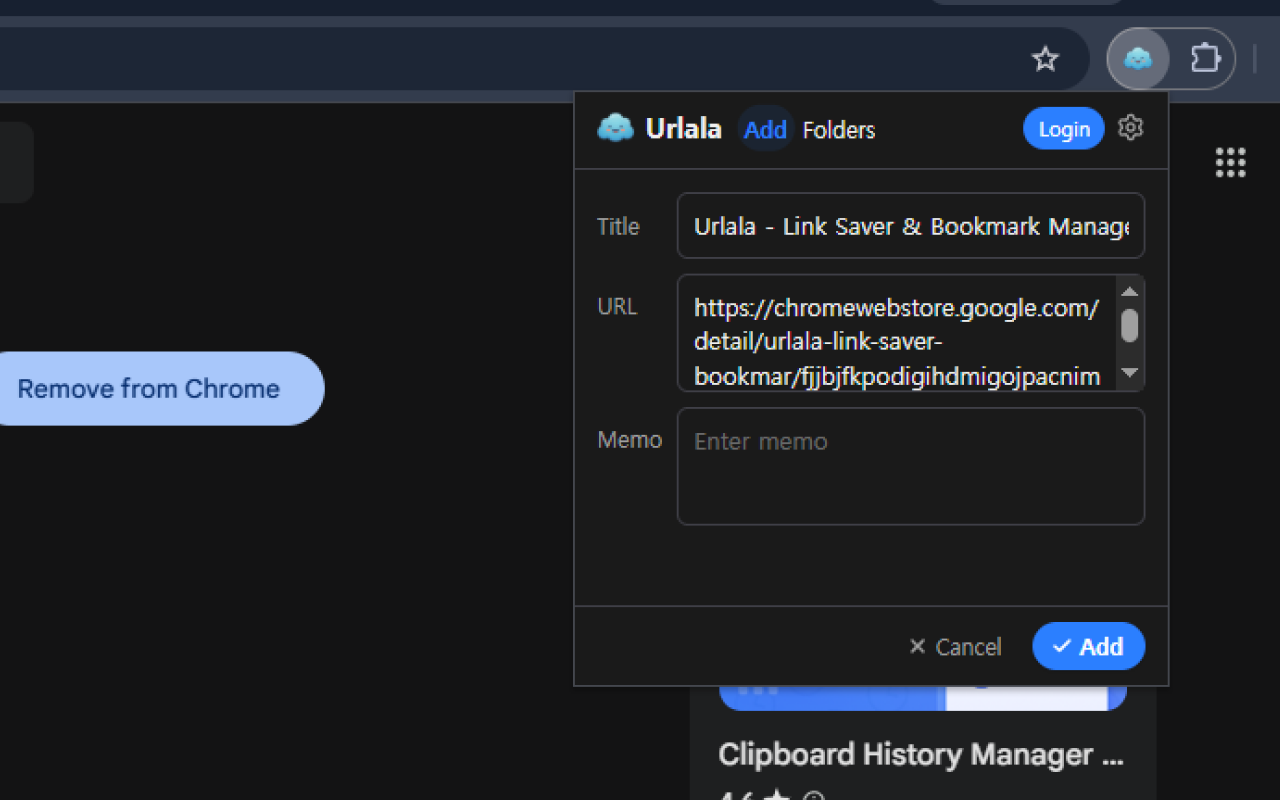
- Open the web page you want to save.
- Select the Urlala icon in the browser toolbar.
- The title and URL of the current page are filled in automatically. Edit them or add a memo if needed.
- Select Add to save the link and close the pop-up.
- You can also save the page by right-clicking it and selecting the save option from the menu.
You can save links without signing in, but they are stored only in your browser and the number of links is limited. Sign in to access the links and folders in your Urlala account across multiple devices.
View saved links and folders
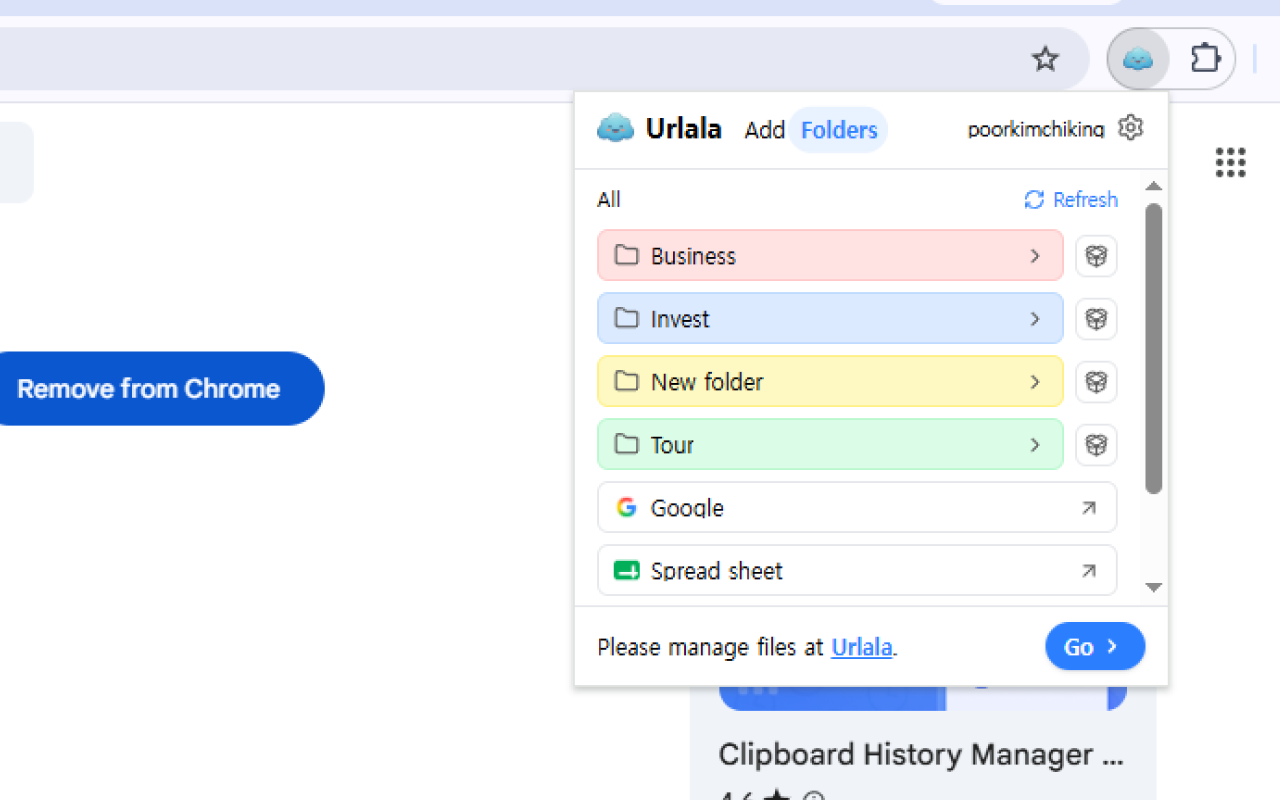
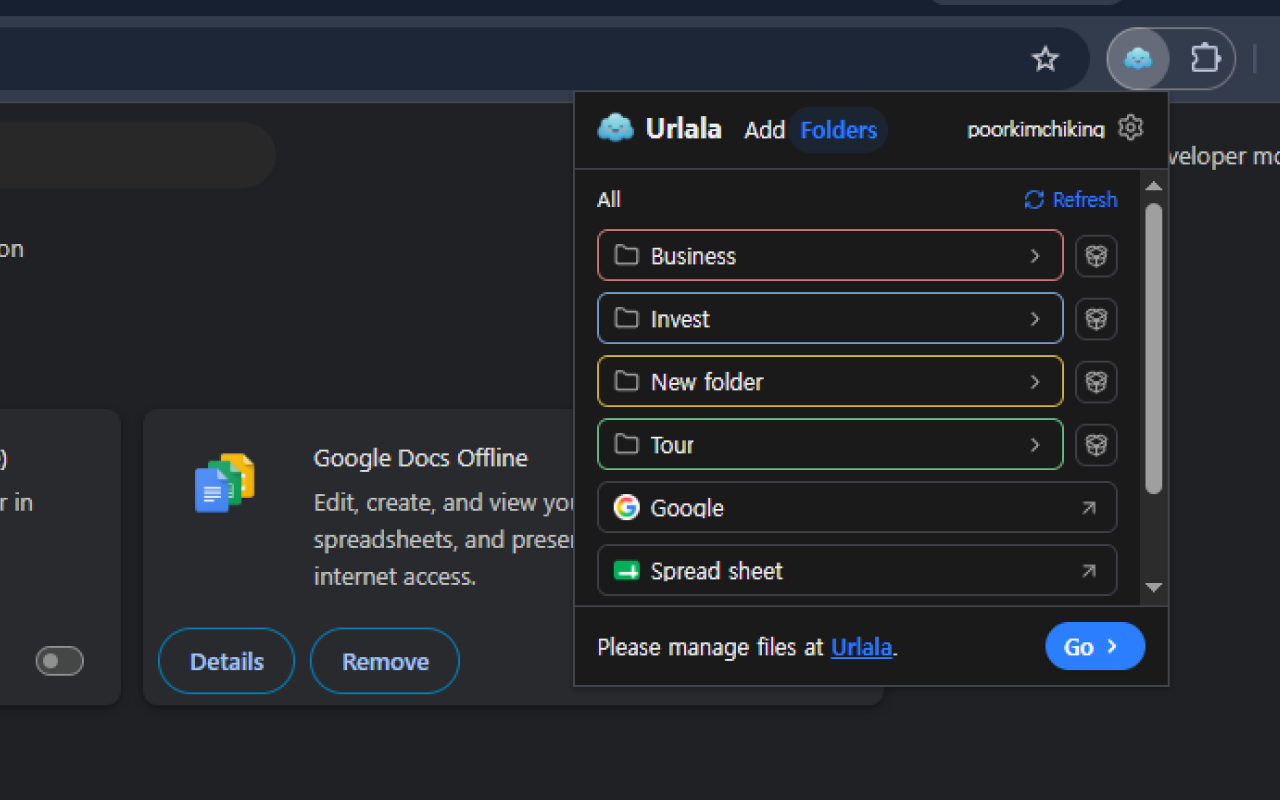
Select the Folders tab at the top of the pop-up to view your saved folders and links.
- Select a folder to open it.
- Select a link to open the saved web page.
- If a newly saved item does not appear, select Refresh.
- Select Urlala or Open at the bottom to open the current folder in the web app and manage its items in more detail.
Sign in and sync
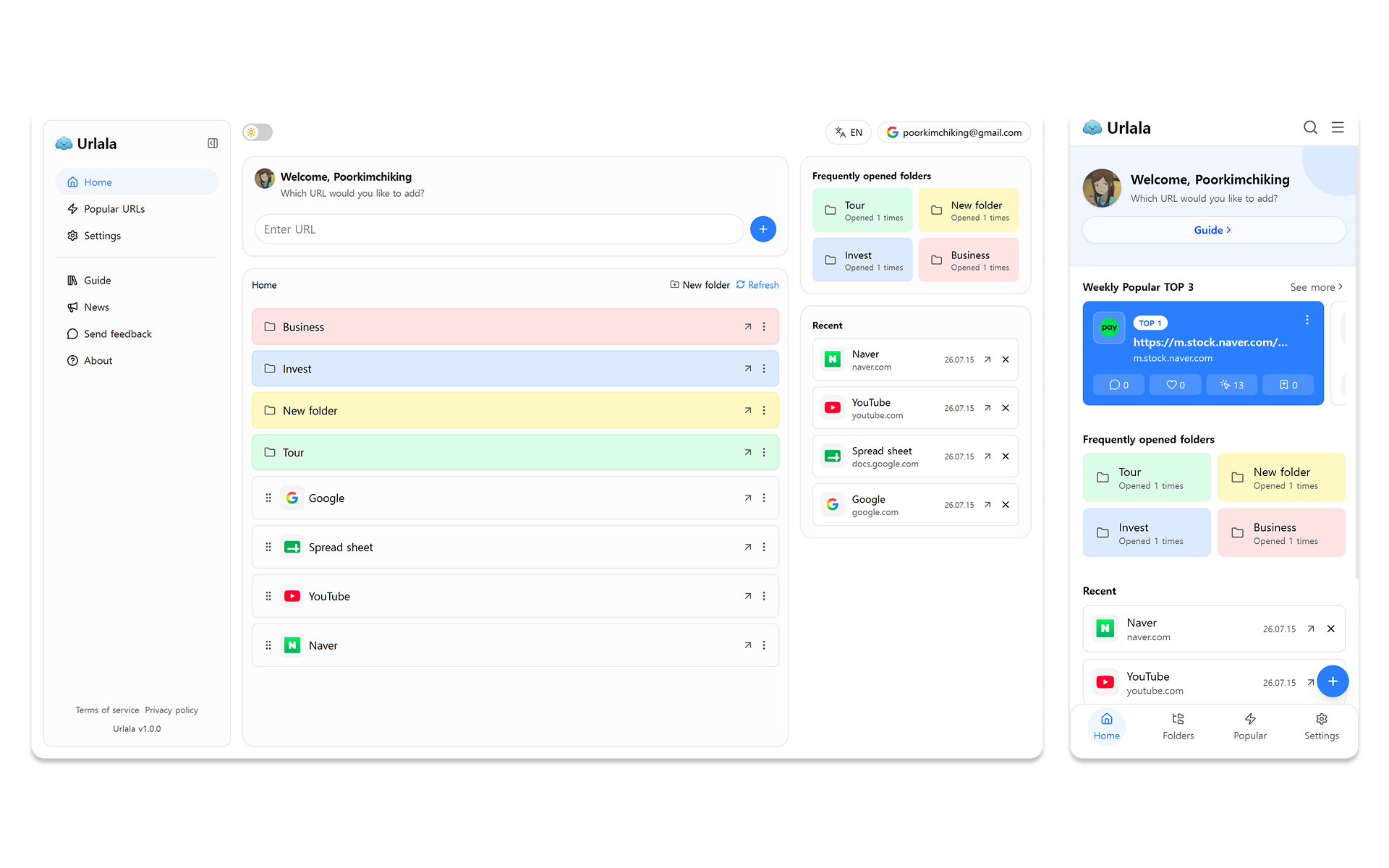
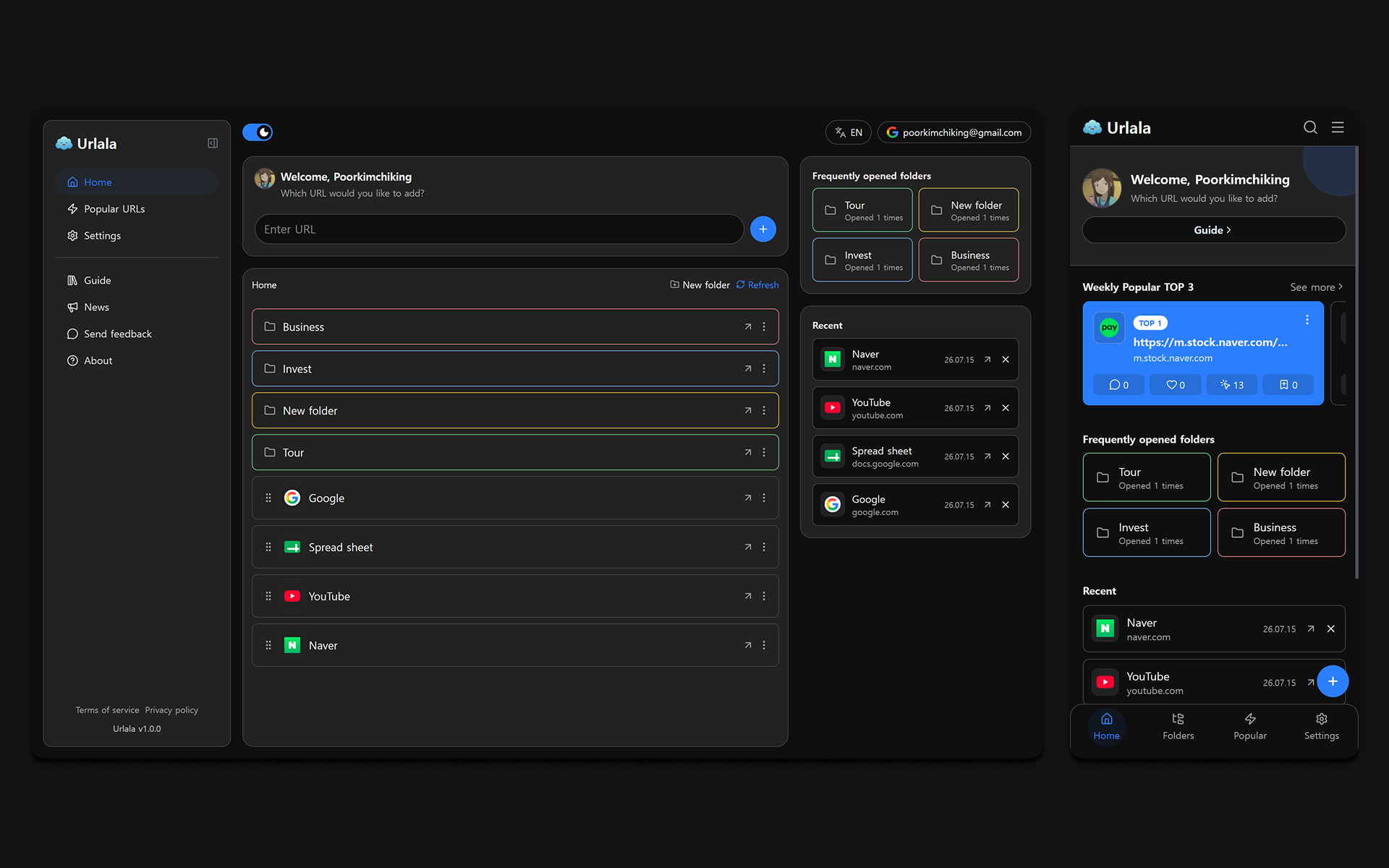
Select Sign in at the top of the extension and sign in to your Urlala account. Once signed in, the extension displays the folders and links in your account, and any links you save are synced to the same account.
From the settings icon in the upper-right corner, you can check your sign-in status, sign out, reset guest data, or open the user guide.