I finally decided to clean up my browser bookmarks on the day I couldn't find a site I knew I had saved—and ended up Googling it again.
I remembered bookmarking it. I just had no idea where it was. Meanwhile, my browser was full of folders with nearly identical names: Development, Work, Read Later, Actually Read Later... Somehow, I had accumulated almost ten years' worth of links.
I set aside a weekend to sort through everything. My original plan was to organize every last bookmark into a perfect folder structure. I gave up after opening the first few dozen. Every link turned into the same question: “What if I need this someday?”
So I changed the goal. Instead of trying to preserve everything, I focused on making the links I use now easy to find.
I started with the links I actually use
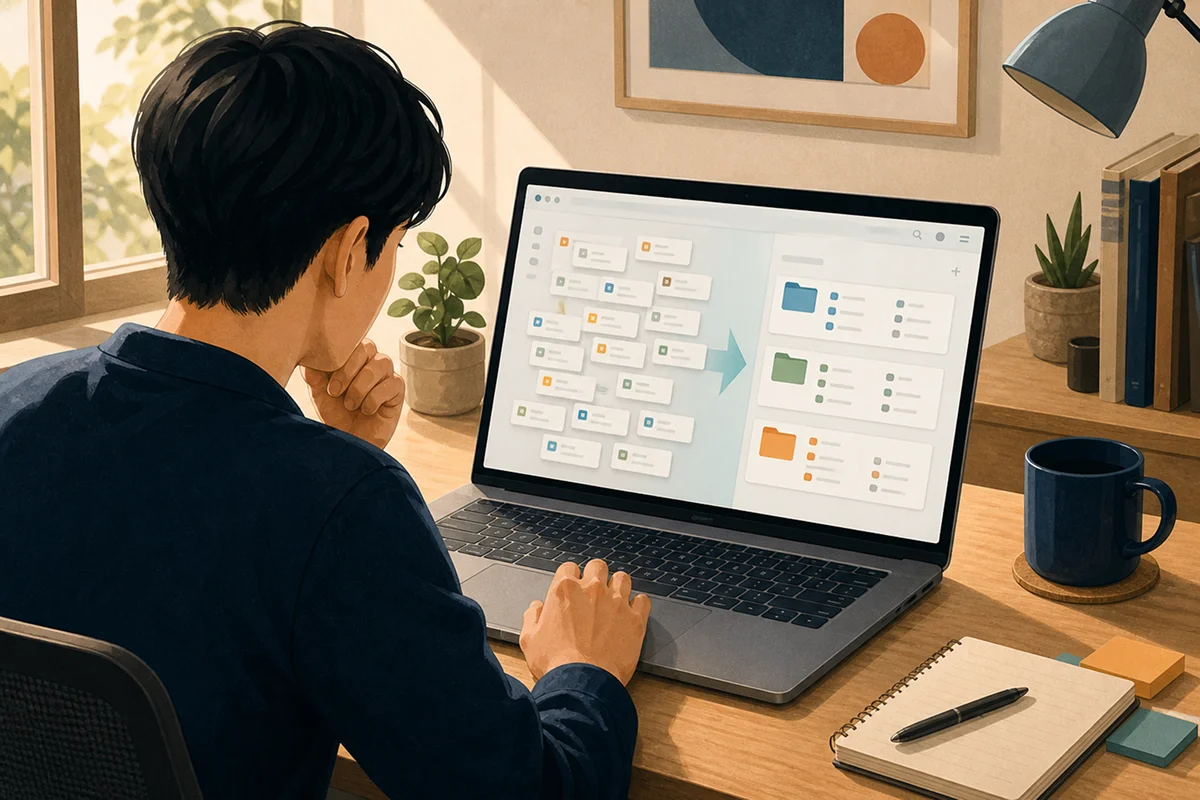
Going through the oldest folders first sounded exhausting, so I began by moving the sites I had opened recently into a new folder. That included email, my calendar, documents for current projects, development servers, and official documentation I check regularly.
It turned out that I don't use nearly as many bookmarks as I thought. I had saved countless pages over the years, but only a few dozen were part of my normal routine. I left everything else in the old folders for the time being. Once I stopped telling myself that every link needed an immediate decision, the whole process became much easier.
I named the new folders after situations that made sense to me: Daily, Current Projects, Reference, and Personal. This worked better than my old categories such as Development, Design, and Finance. When I'm looking for a link, I rarely think, “What category does this belong to?” I think, “What am I trying to do right now?”
For example, a current project folder might contain a planning document, a Figma file, a development server, and an admin page. They are different kinds of resources, but I open them together when I start working. Keeping them together feels much more natural.
Deleting things was the hard part
Broken links and discontinued services were easy to remove. Working pages were harder. If an article had once been useful, deleting it felt wasteful even when I had not looked at it for years.
Whenever I got stuck, I asked myself one question:
“Have I opened this page recently?”
If the answer was no, I usually deleted it. If the information truly mattered to me, I probably would have returned to it at least once. And if I need it later, searching for a newer version will often be more useful anyway. When I had several articles about the same topic, I kept the clearest one and, when available, the official documentation.
My Read Later folder became much smaller. A page I had ignored for months—or years—was unlikely to become urgent next week. I also had quite a few links that made me feel as though I had learned something simply because I had saved them.
On the other hand, I kept pages that would be annoying to find again: a settings screen buried behind several menus, a specific sheet inside a document, or a detailed page on a government website. A site's home page is usually easy to search for. The valuable bookmarks are often the pages that take several steps to reach.
Deep folder structures made things harder to find
I used to create folders inside folders because a detailed hierarchy looked organized. The problem was that I could never remember which path I had chosen.
Now I try to stop at two levels:
- Work → Current Project
- Work → Shared Tools
- Learning → Current Course
- Personal → Frequently Used Services
When I feel tempted to add another folder, I rename the bookmark instead. “Dashboard” becomes “Urlala Analytics Dashboard,” and “Sheet1” becomes “Monthly Work Schedule.” Using words I would actually search for is more helpful than building a perfect hierarchy.
I also keep one temporary folder. It holds links that do not have an obvious home yet or pages I expect to revisit within a few days. I named it “This Week” instead of “Temporary,” because a temporary folder has a habit of becoming permanent. I check it on the weekend and remove what I no longer need. I do not empty it perfectly every week, but at least it no longer contains years of forgotten links.
My bookmarks were scattered across devices
Links saved on my computer were not always available on my phone, and I often used different browsers at work and at home. I moved the bookmarks I use most often into Urlala so they would not live in only one browser.
Because I can open the same folders on the web, switching browsers or devices no longer means rebuilding my setup. It is especially convenient when I need a reservation page or a public service website while I am away from my computer. I can also collect a few links in a separate folder when I need to share them with family or coworkers, rather than sending each URL one at a time.
I did not move every bookmark into Urlala. Short-lived links that I only need in one browser can stay there. I mainly moved links I repeatedly open on different devices or may want to share with someone else. Giving each tool a clear role has been easier to maintain than forcing everything into a single system.
A small change I noticed afterward
Having fewer bookmarks is nice, but the biggest difference is that I keep fewer tabs open. I used to leave finished pages sitting in the browser because I worried I would never find them again. Now that I know where to return, closing a tab feels much easier.
One cleanup did not keep everything tidy forever. New links still pile up. The difference is that I pause before saving one and ask, “Can I picture the exact situation in which I will open this again?” If I cannot, I usually leave it unsaved.
If years of old bookmarks feel overwhelming, you do not need to organize all of them at once. Start by putting ten links you used today into one new folder. The rest can be moved or deleted gradually.
I still have not emptied every old bookmark folder. But I spend far less time bouncing between my bookmarks and a search engine trying to find the same page. A perfectly categorized archive was never what I needed. I just needed the links I use now to be visible and easy to reach.