Desktop basics
Urlala lets you save links quickly, organize them into folders, and find them again whenever you need them. This guide walks through the basic desktop workflow.
1. Save a link
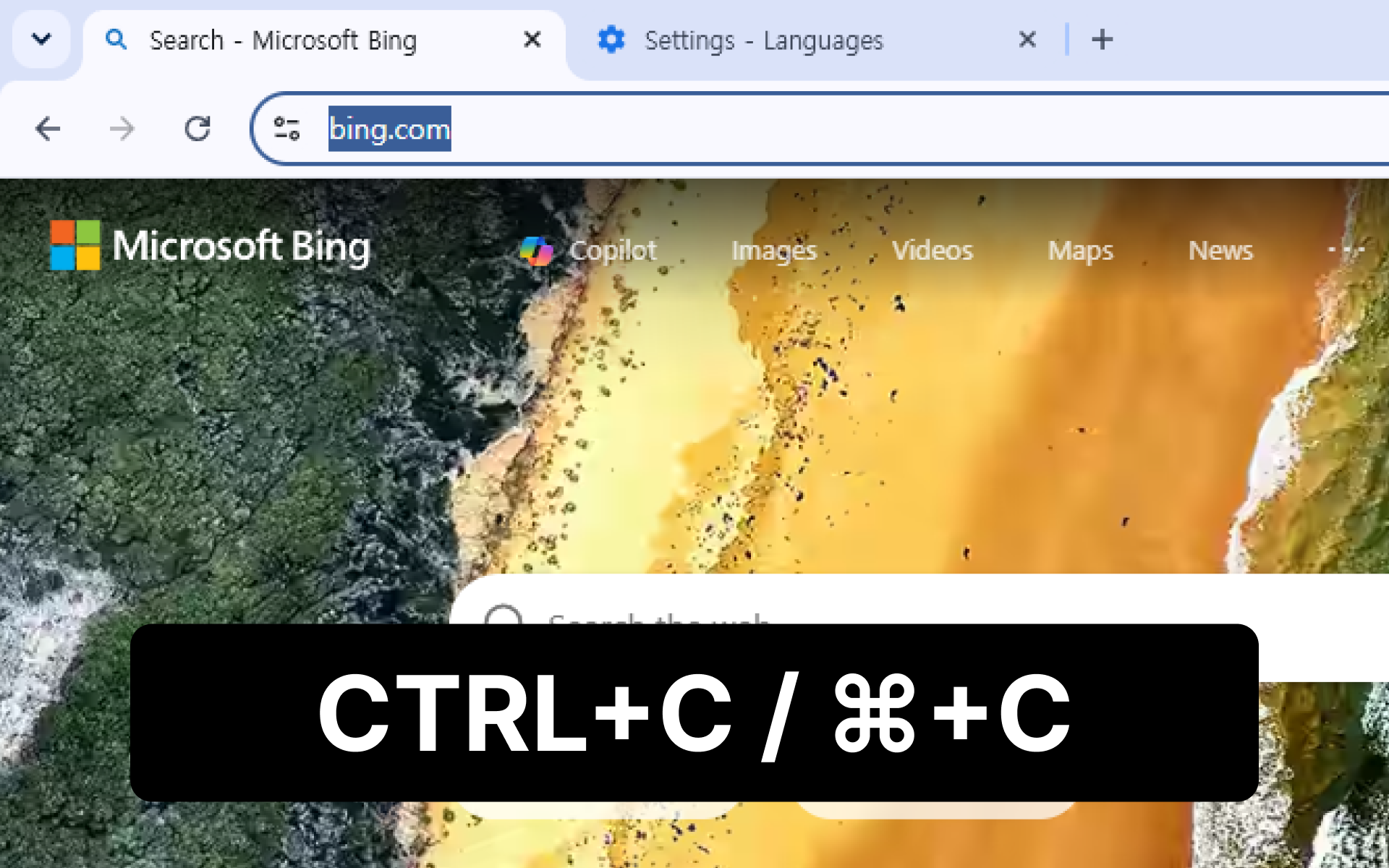
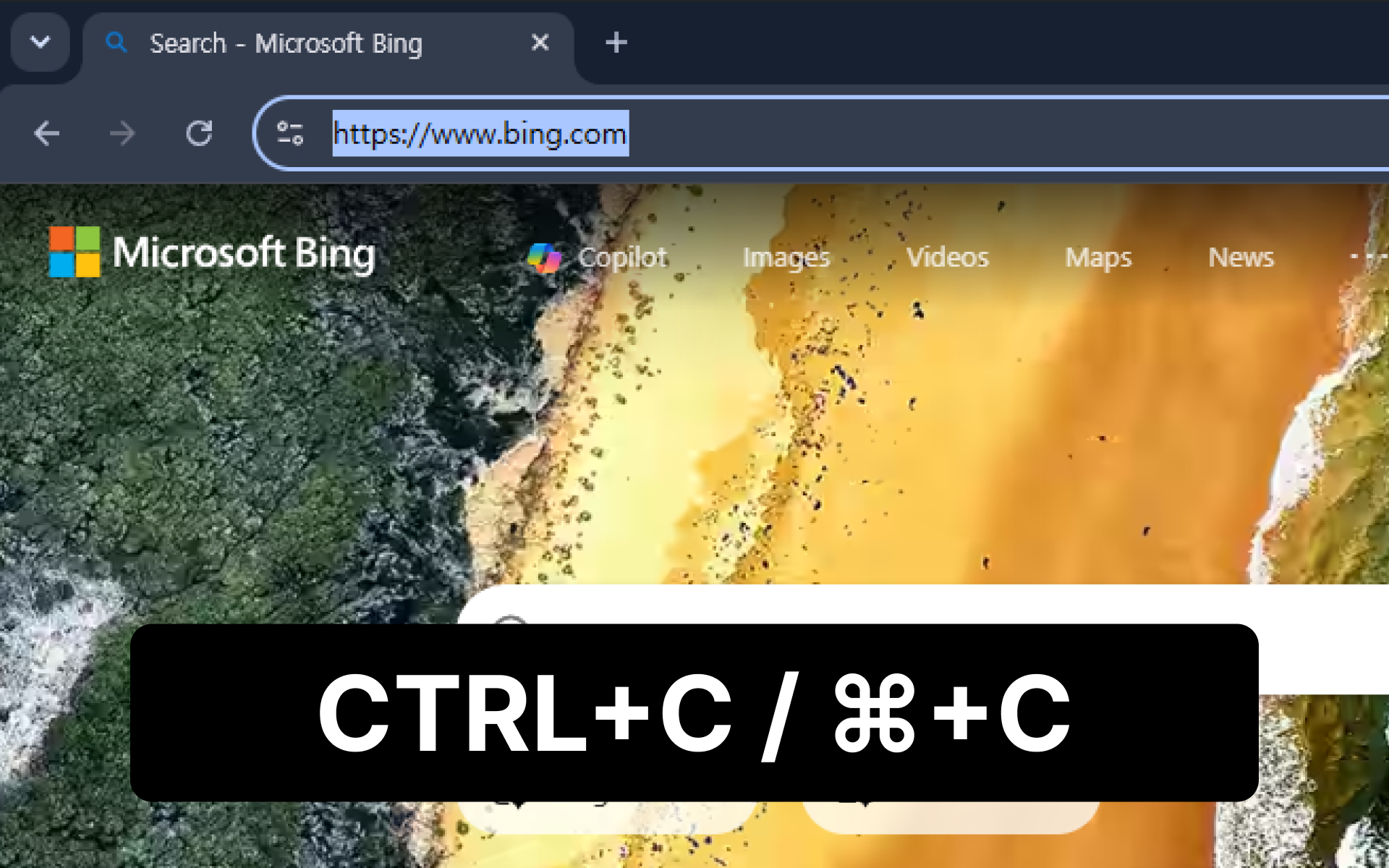
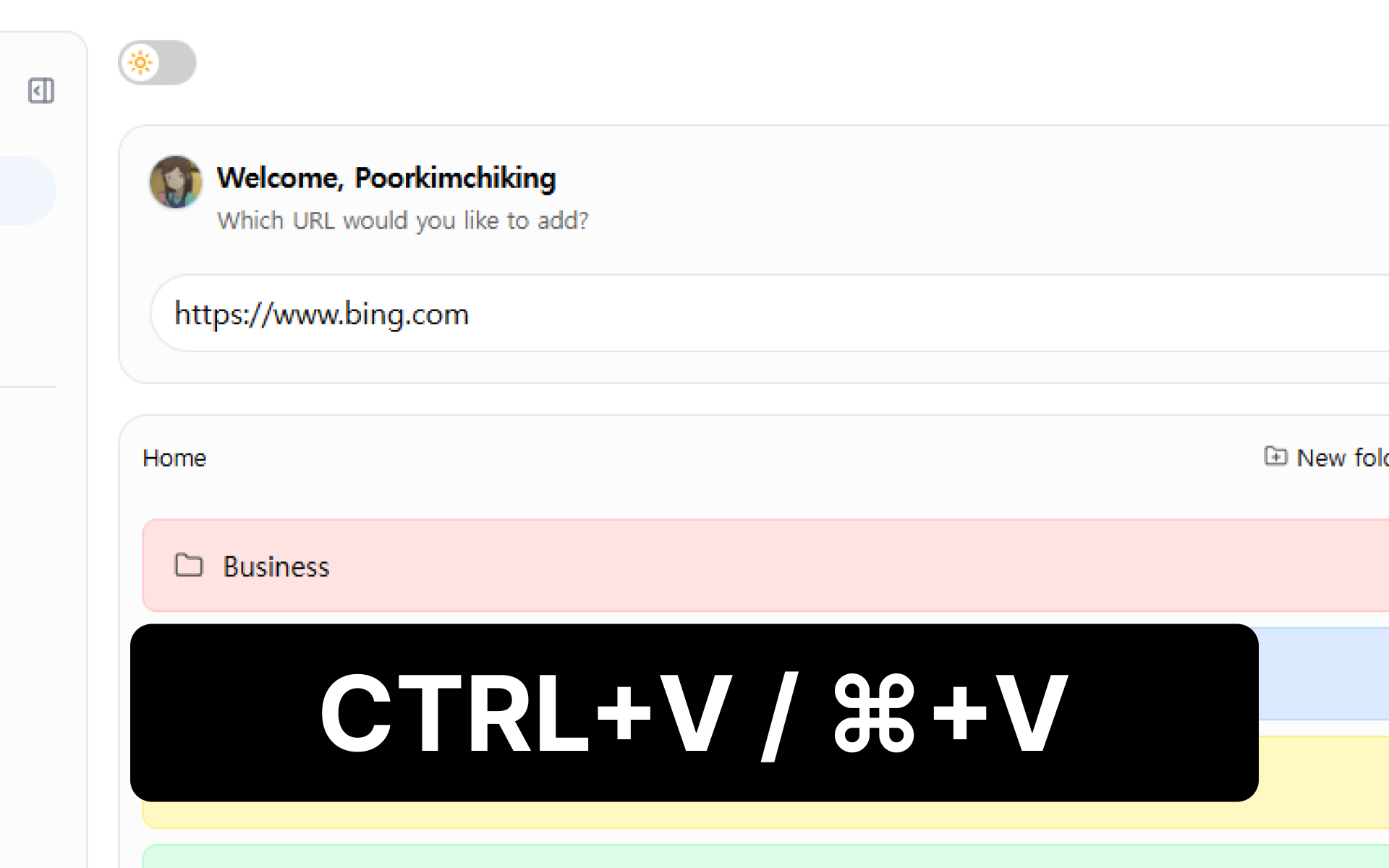
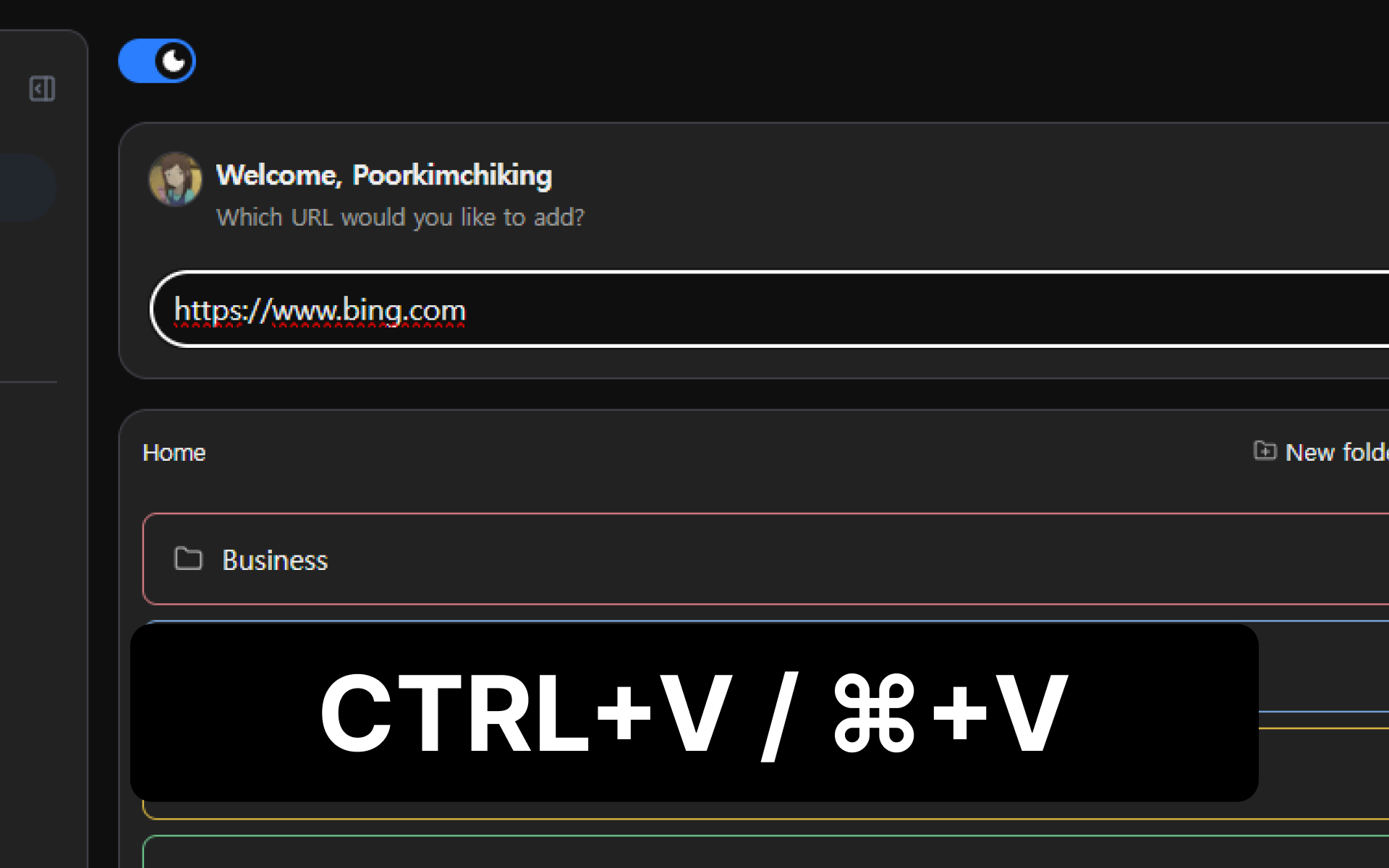
- Copy the address of the web page you want to save.
- Paste it into the URL input at the top of the Urlala home page.
- Select the + button to the right of the input, or press Enter.
Once saved, the link is added to the folder you are currently viewing. Select the link to open the web page in a new tab.
Links are saved in the root folder by default. If you add a URL while viewing another folder, it will be saved directly in that folder.
2. Create a folder
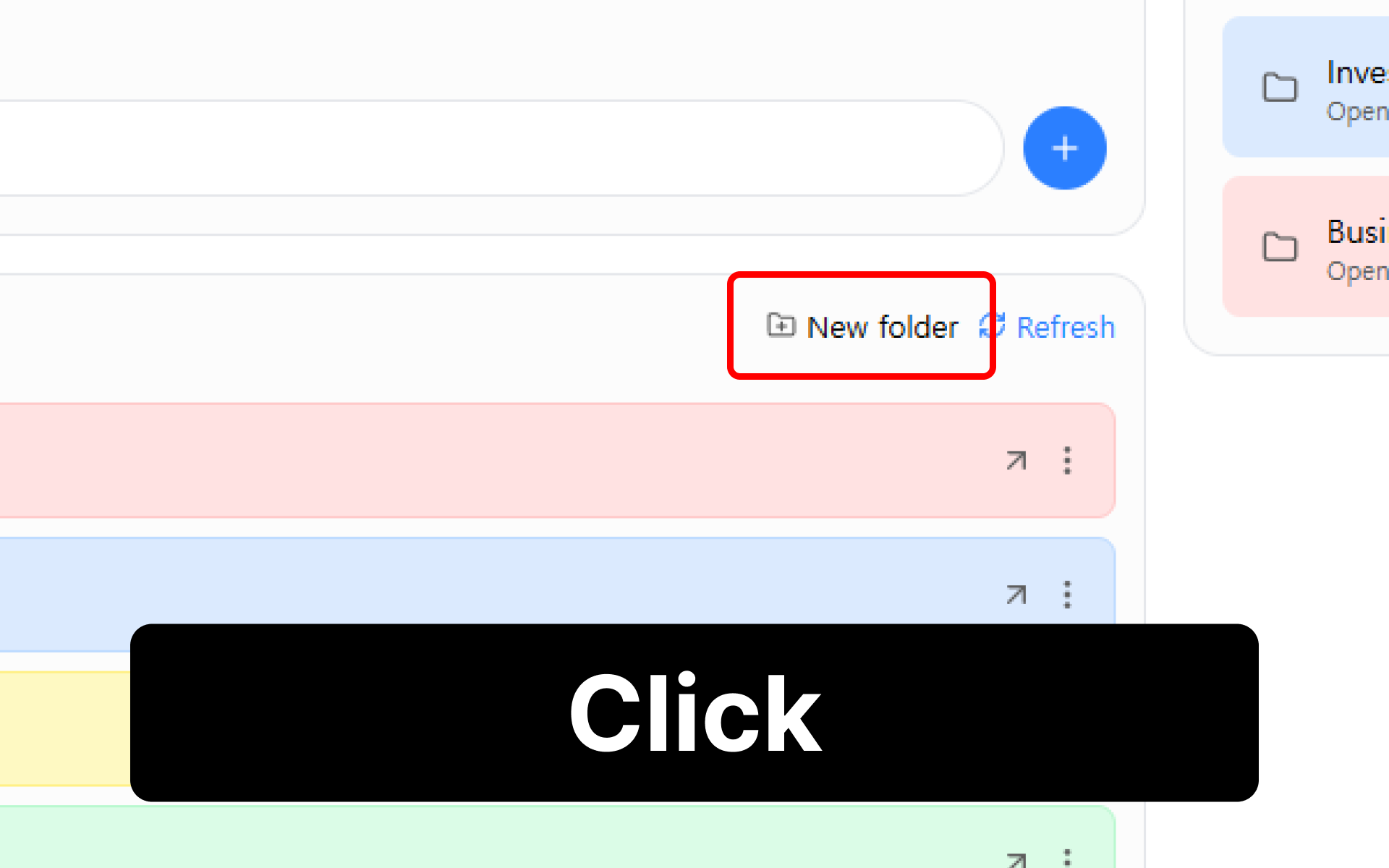
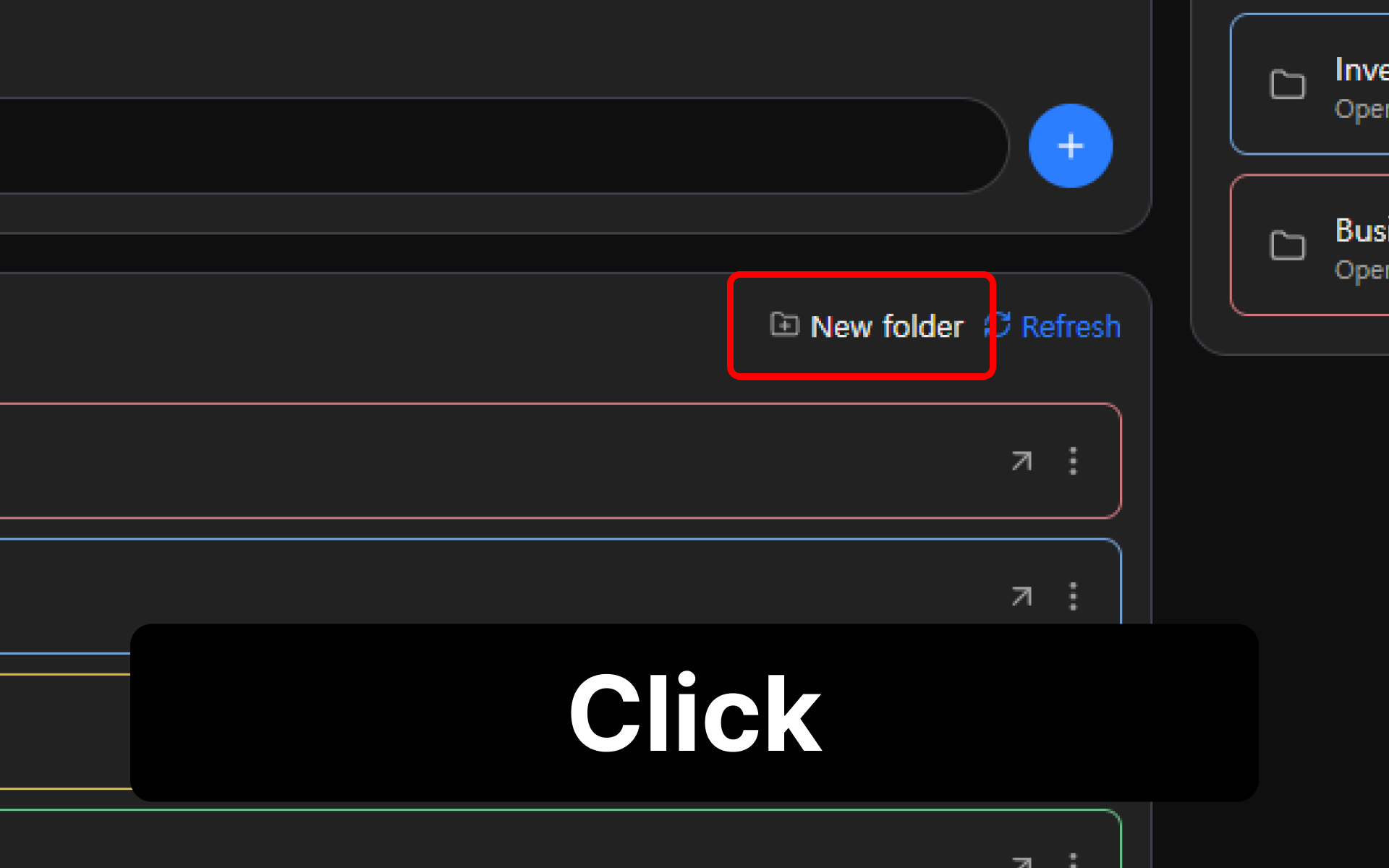
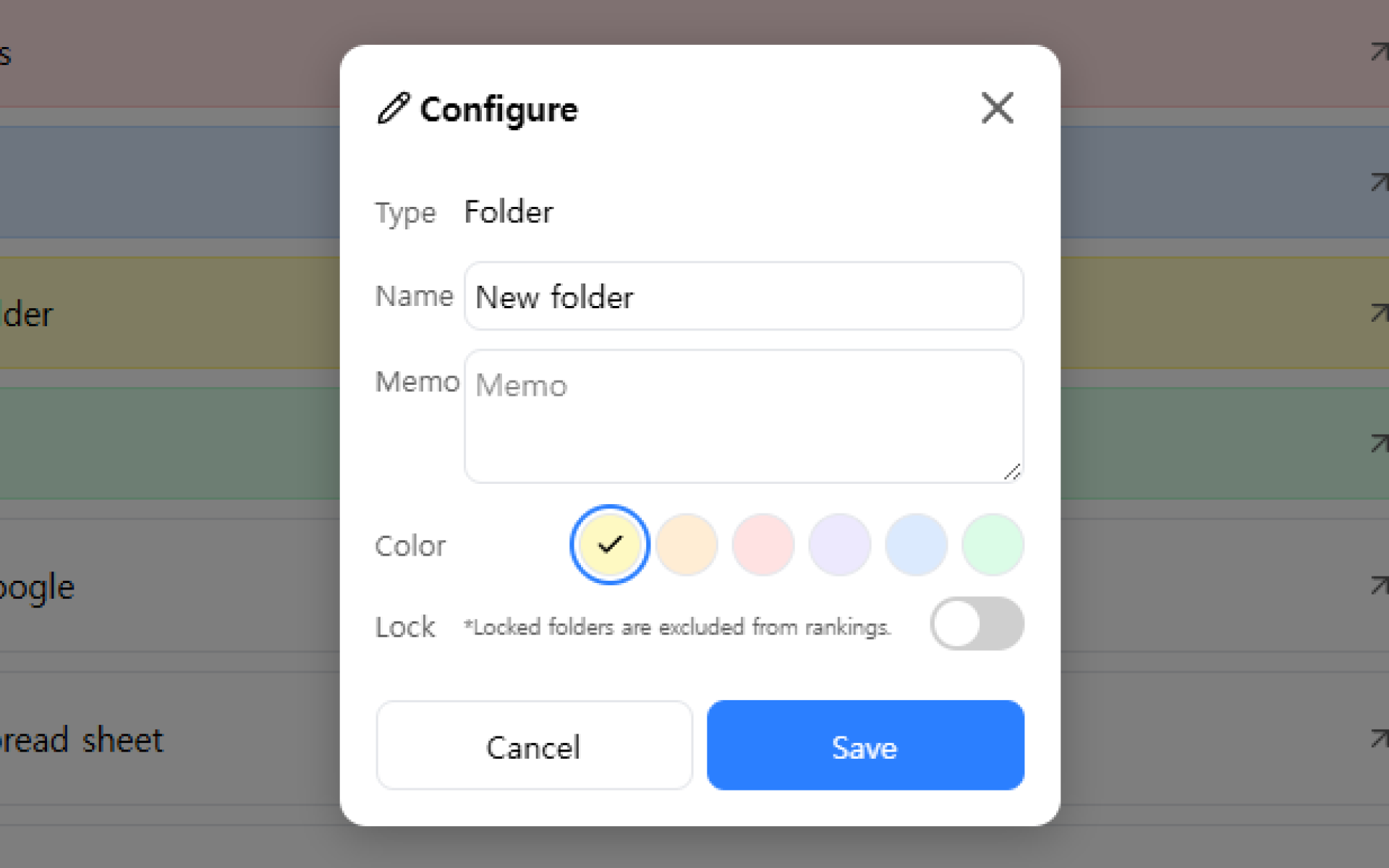
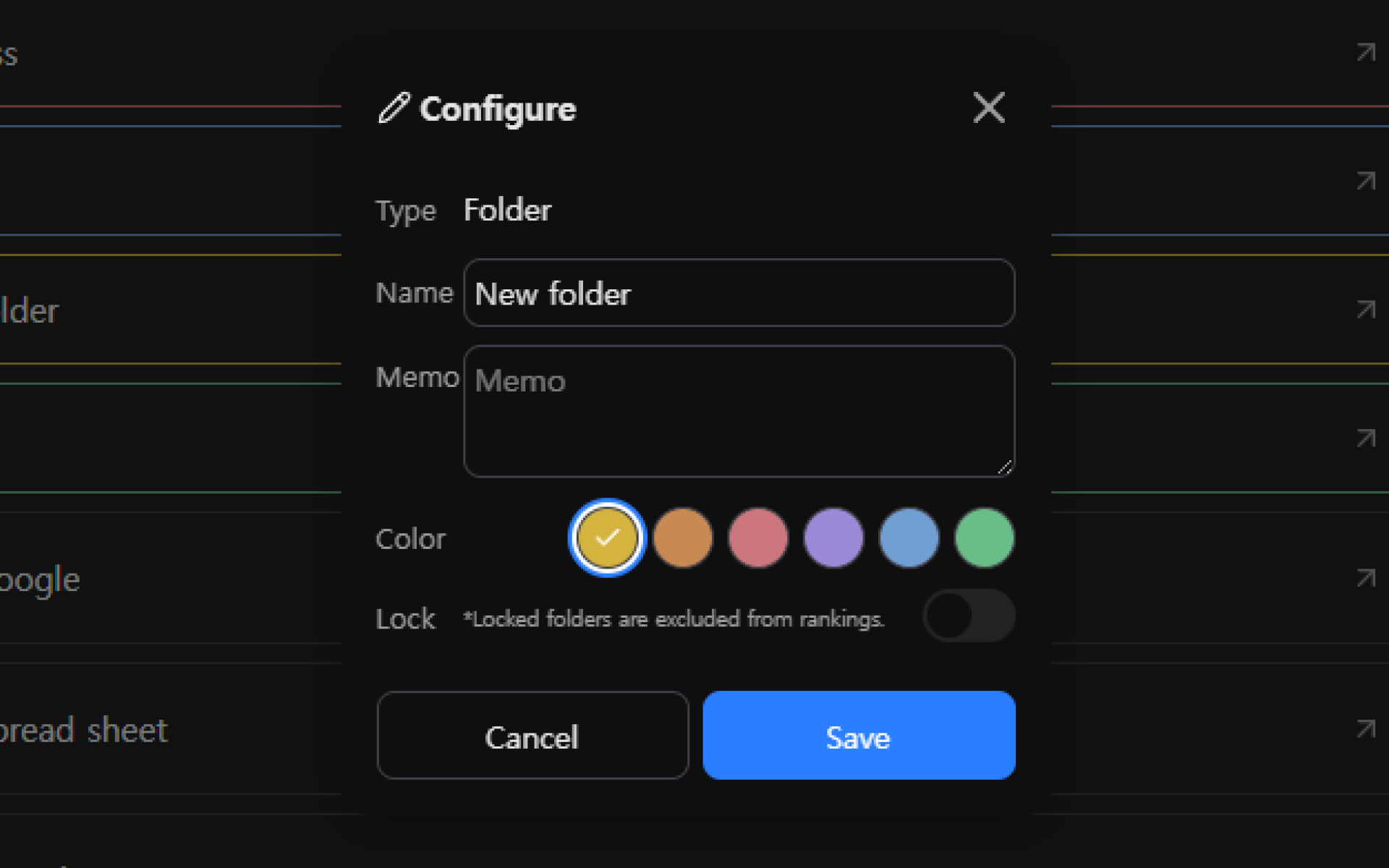
Create folders by topic or purpose before your collection grows too large. This makes your links easier to manage.
- Select New folder above the link list.
- Enter a folder name that is easy to recognize.
- Choose a color, then create the folder.
Select a folder to open it. Use the path at the top to return to a previous folder. You can also create folders inside other folders to organize your collection in more detail.
3. Organize links and folders
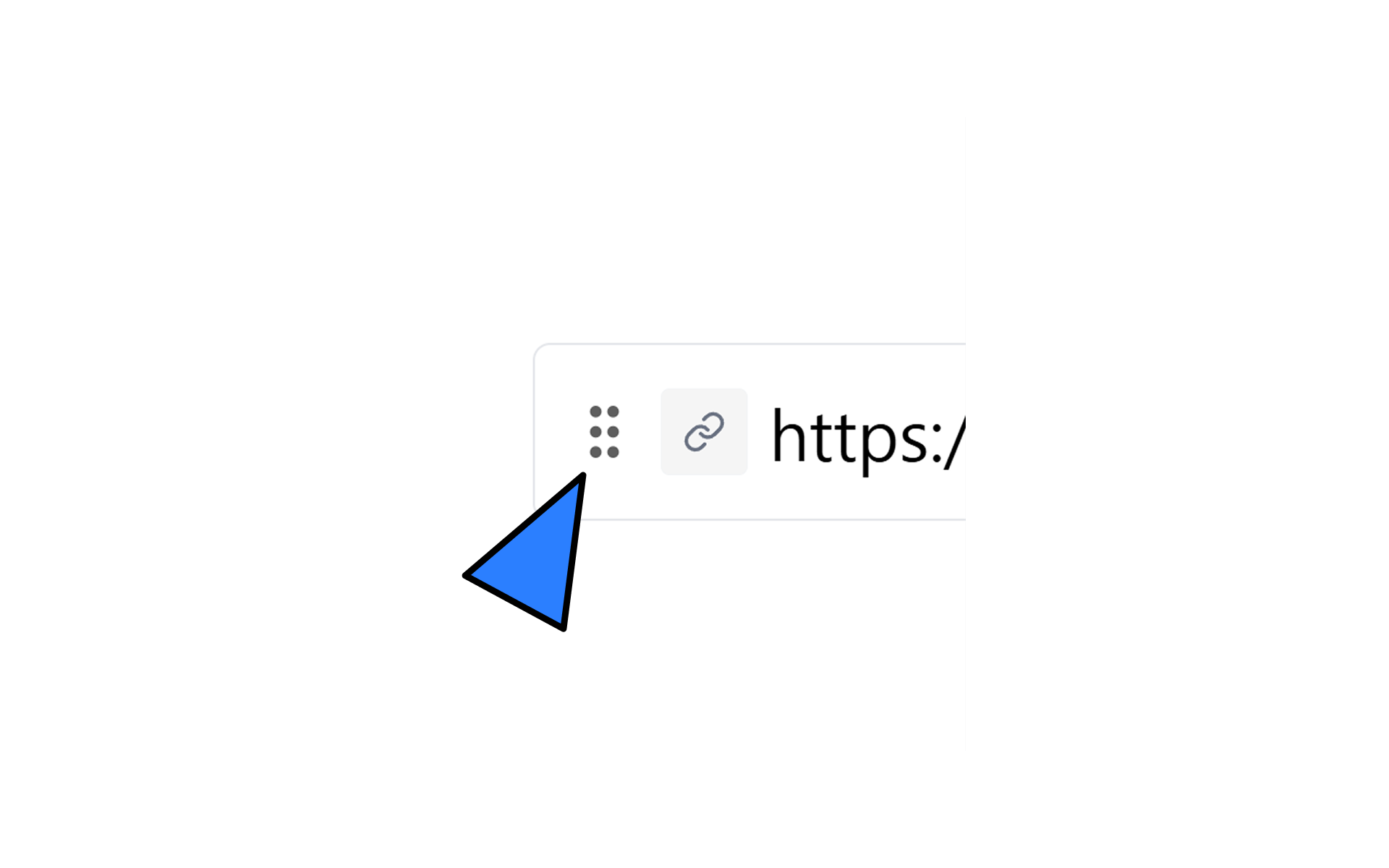
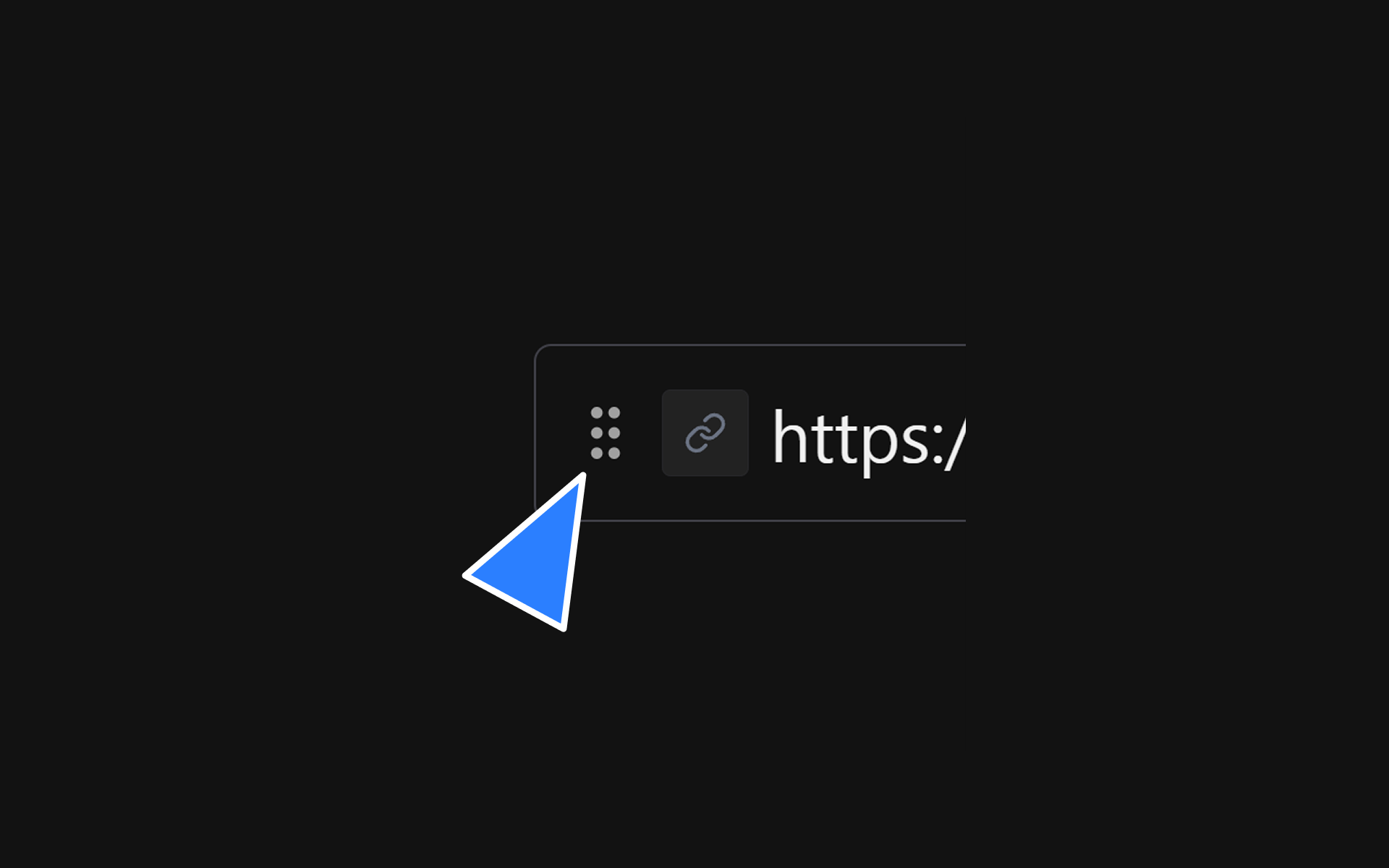
Grab the drag handle on the left side of a link to reorder it or move it into another folder.
- Drop it at another position in the same list to change the link order.
- Drop it onto a folder to move the link into that folder.
- From inside a folder, drop it onto the parent-folder item to move it up one level.
Instead of dragging, you can select three-dot menu → Move on an item and choose a destination folder.
4. Manage saved items
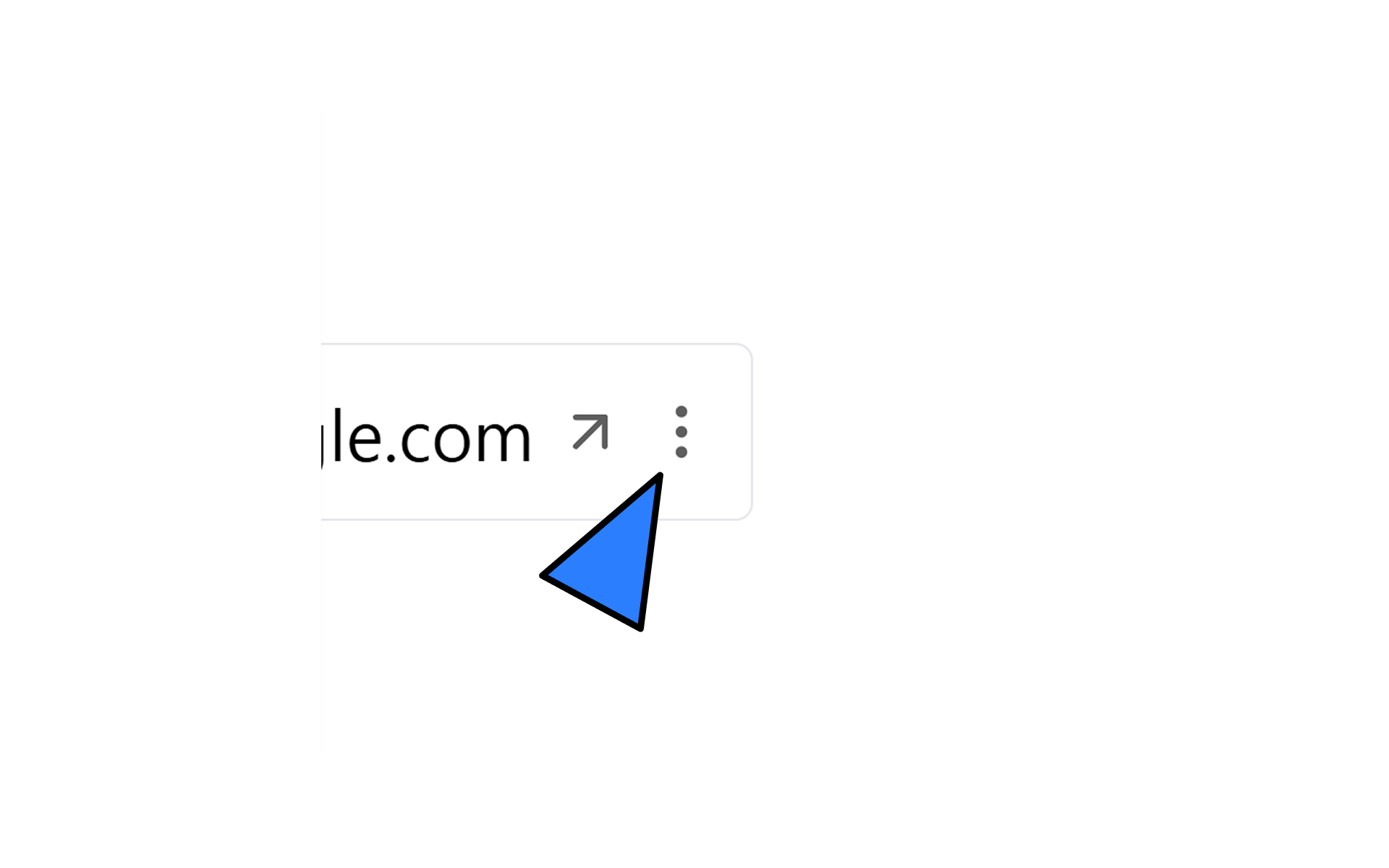
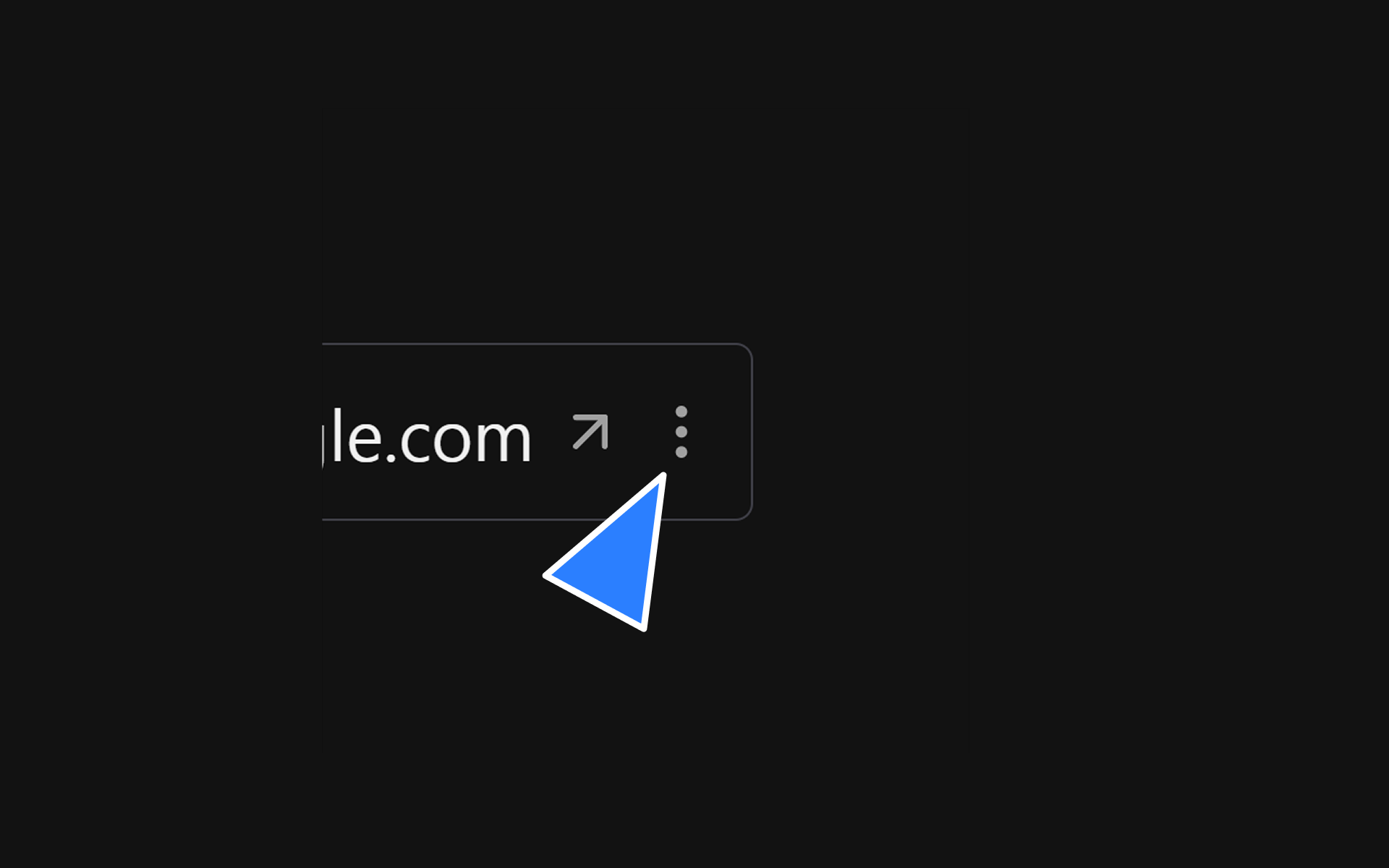
Open the three-dot menu to the right of a link or folder to access these actions:
- Settings: Edit saved information such as the name and memo.
- Copy URL: Copy the saved link address to the clipboard.
- Move: Move the selected item to another folder.
- Share: Create a shareable link for a folder.
- Delete: Delete an item you no longer need.
To organize several items at once, right-click an item to enter selection mode. You can then move or delete the selected items together.
5. Find frequently used links again
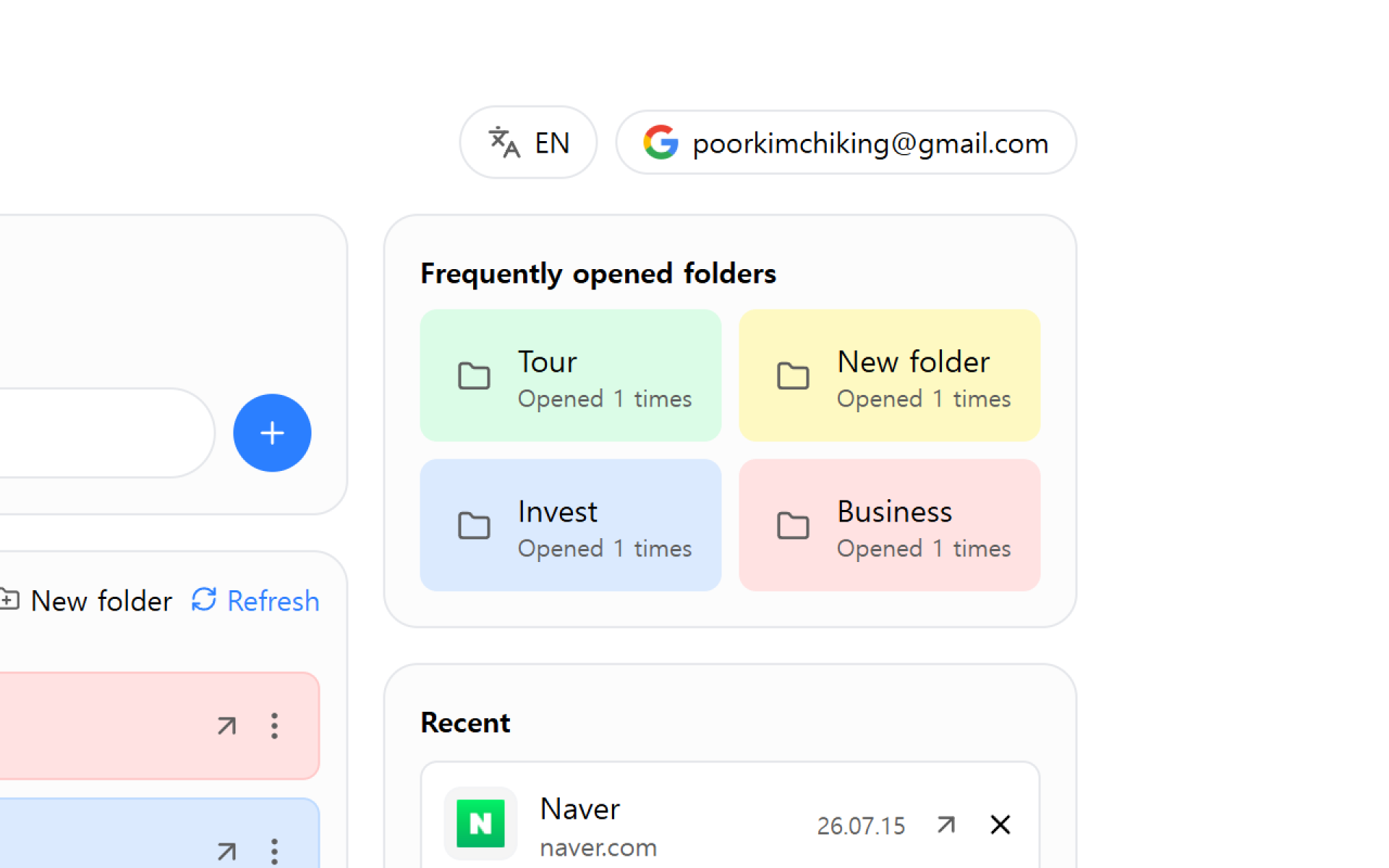
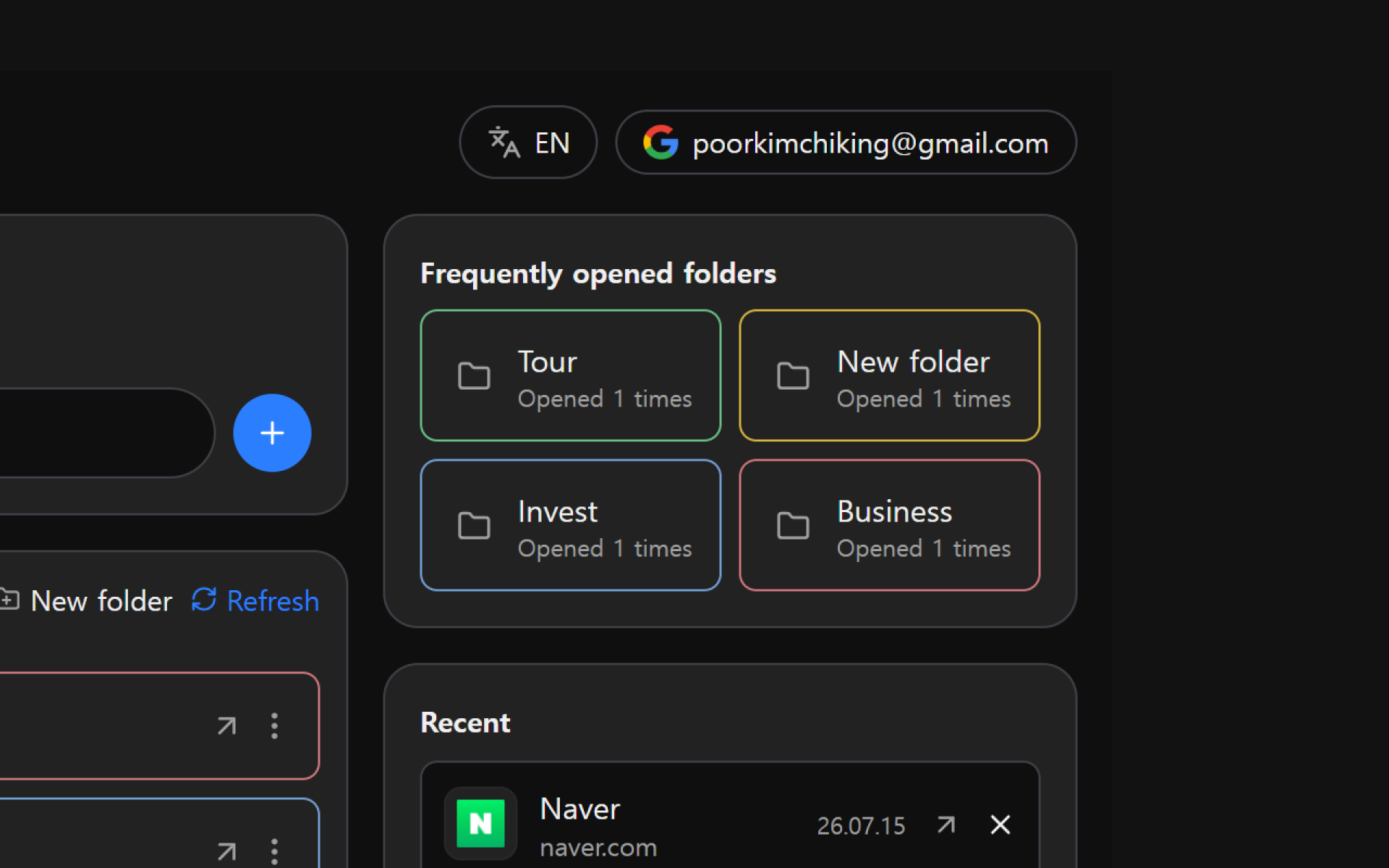
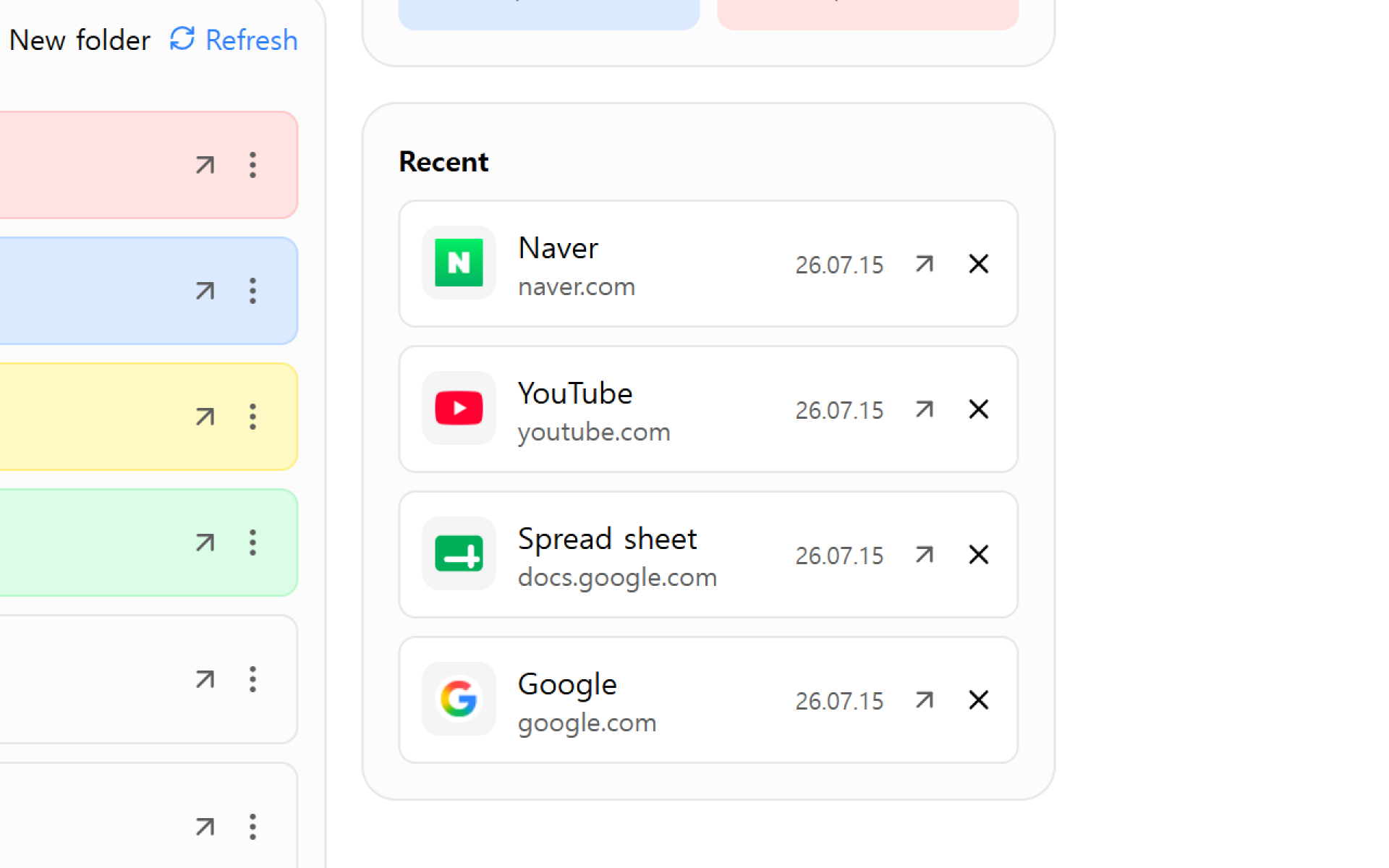
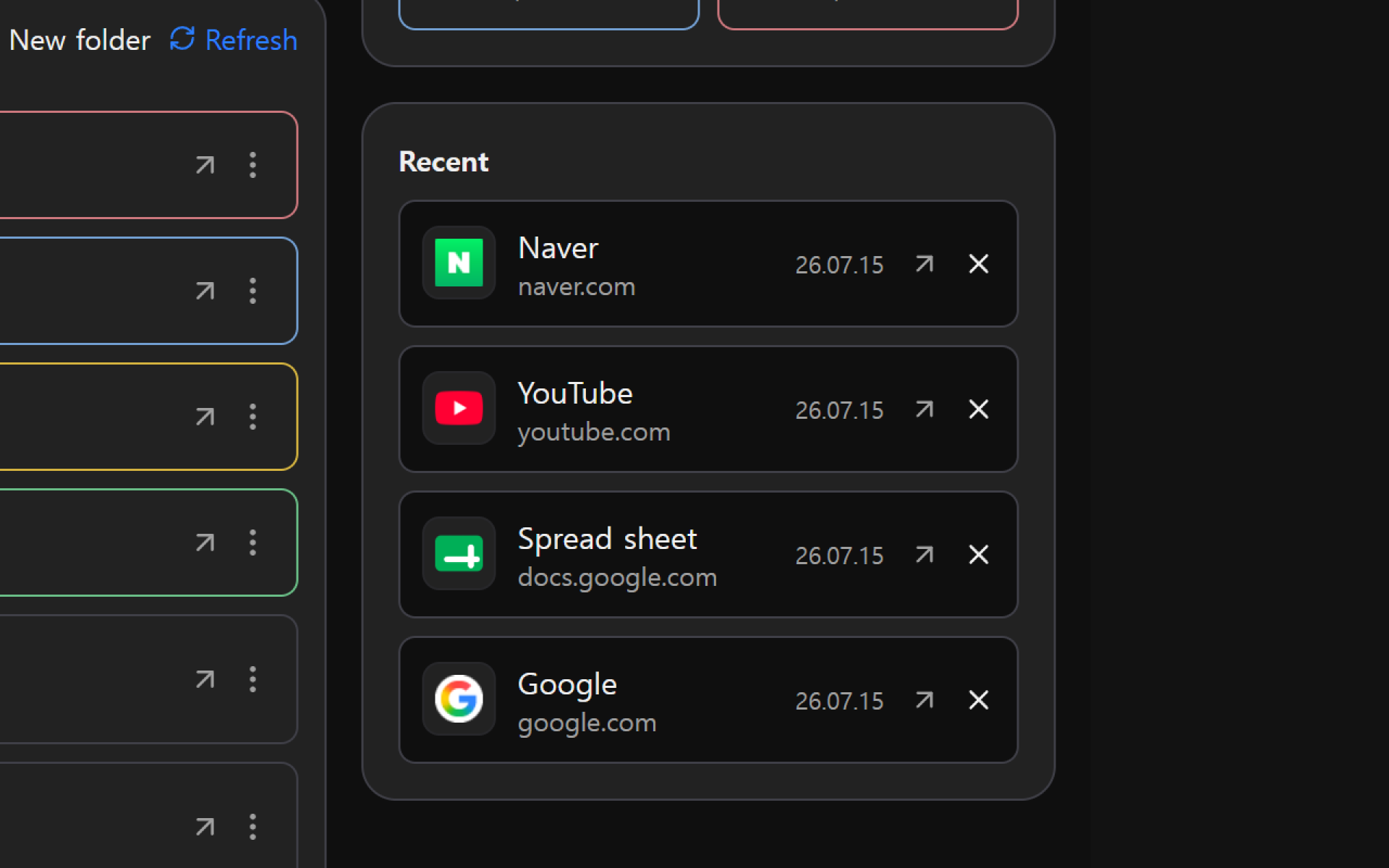
The right side of the home page shows Frequently opened folders and Recently opened links. Use these sections to jump quickly to items you use often.
When your collection grows, use Search in the left menu. Enter part of a name, URL, or memo to find the link you need.
Continue on multiple devices
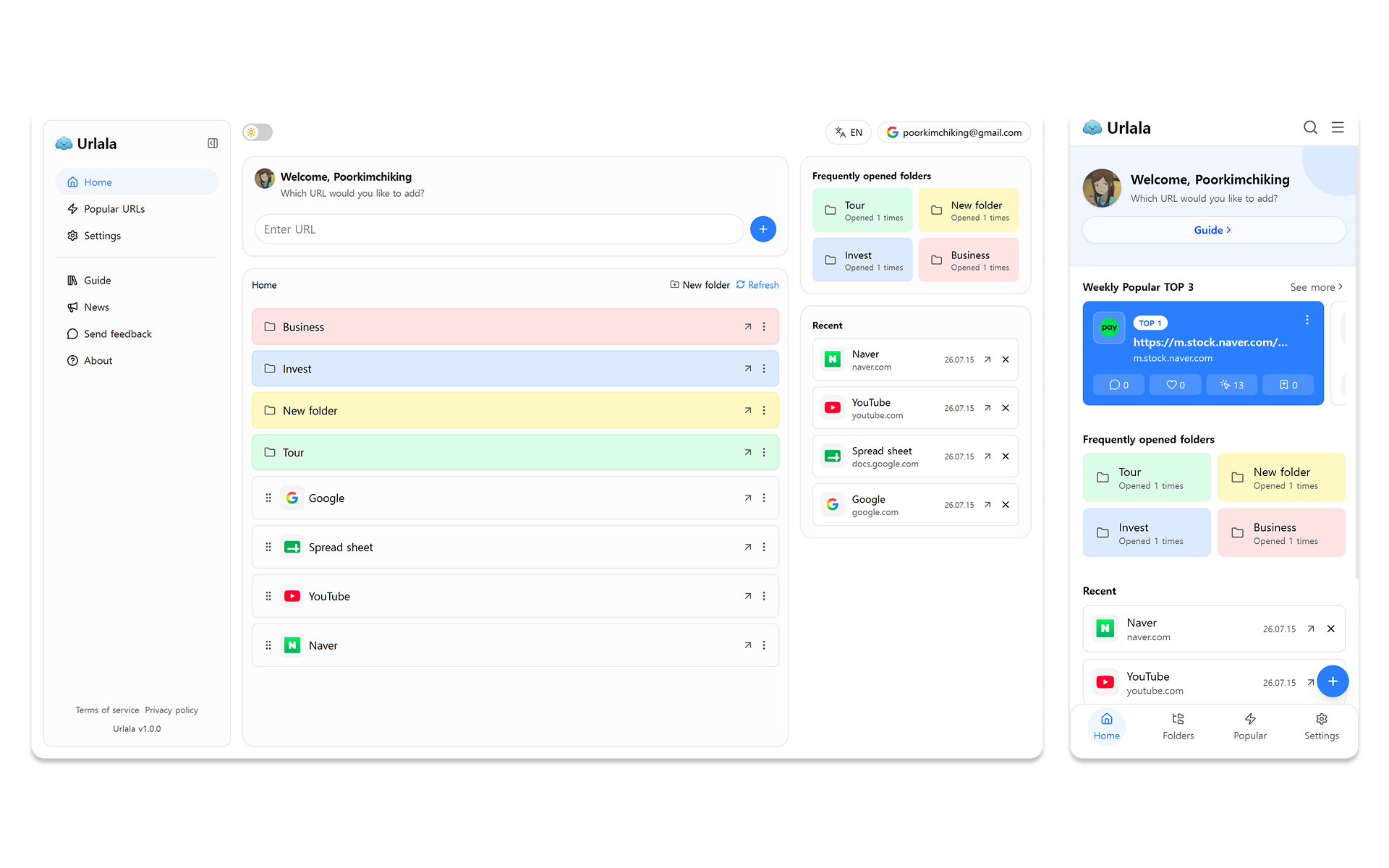
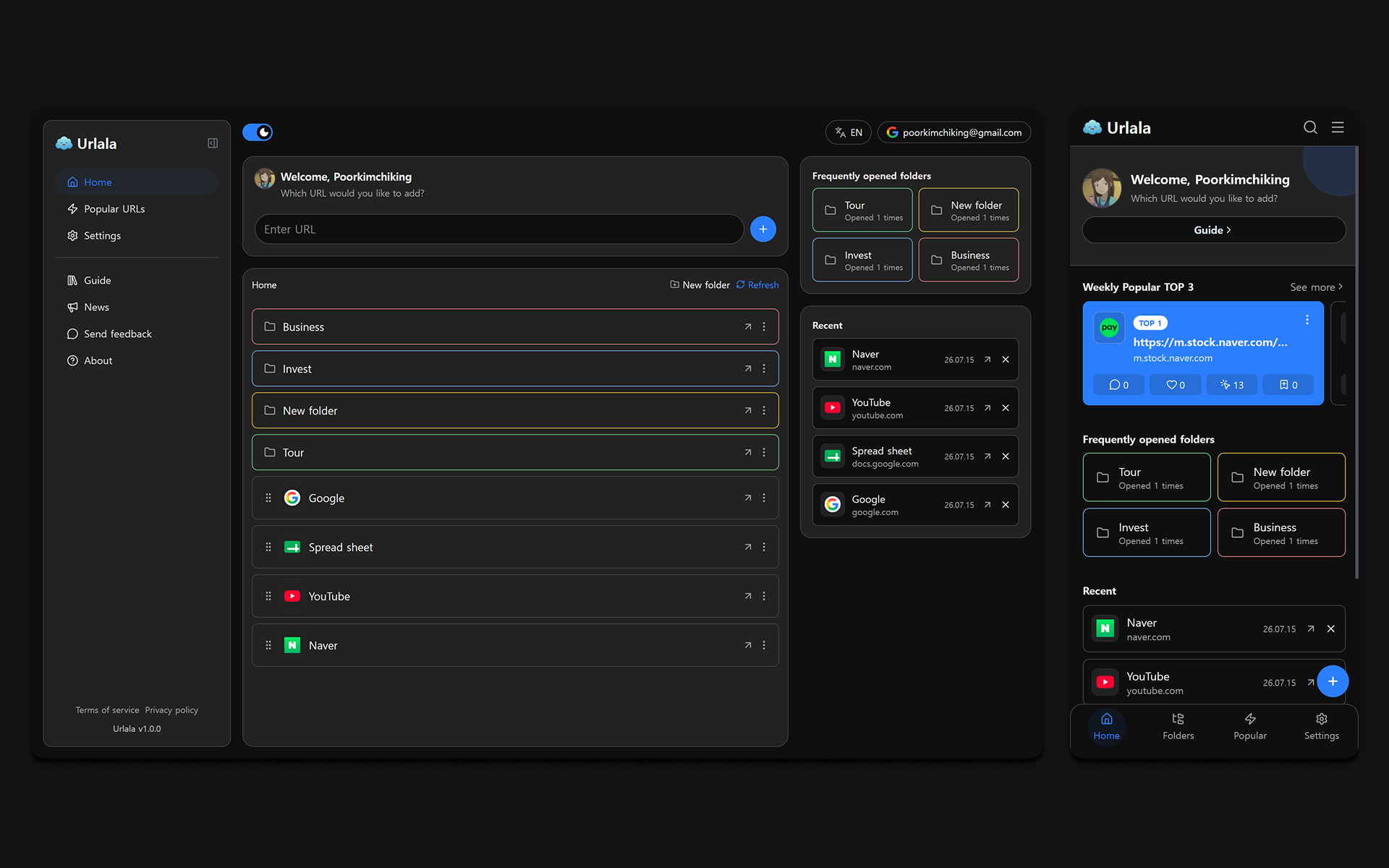
You can try the basic features without signing in. When you sign in, your links and folders are stored in your account. Sign in with the same account to continue managing them across desktop and mobile.
Try saving your first link and creating a folder for a topic you use often.